Zettelfrieden
Overview of your insurance contracts. Reads policies and reminds you of cancellation deadlines. Runs on your own server.

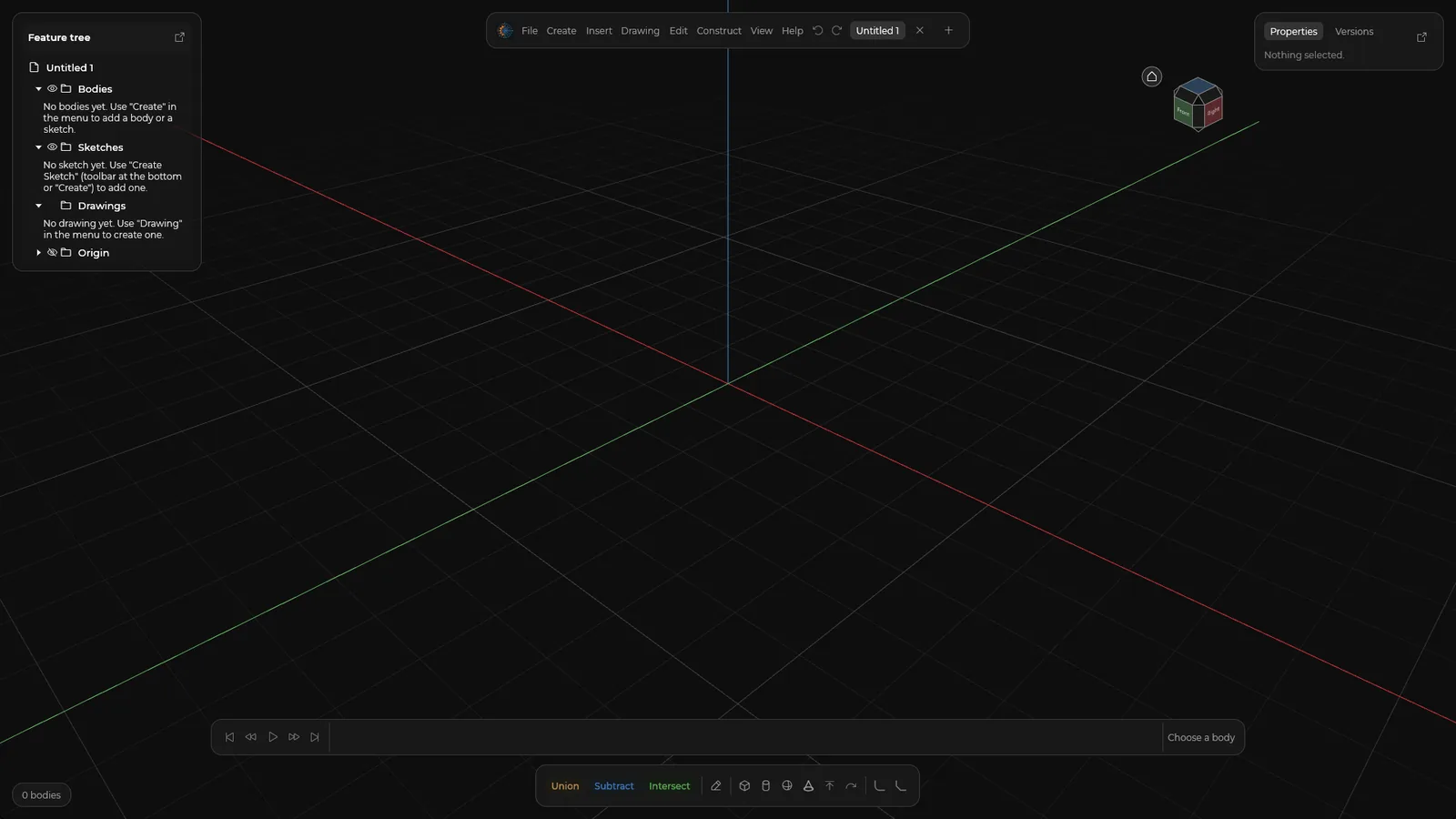
A free 3D CAD program for Windows and Ubuntu. You draw sketches, turn them into bodies and create technical drawings.
You need a part that you cannot buy as it is: a bracket, a housing, a spare part. With PlanoraCAD you design it on the computer and export it for 3D printing.
If you already know other CAD programs, you will find your way around quickly.
| System | Windows 10/11, 64 bit; Ubuntu (build it yourself) |
|---|---|
| Status | Test version 0.0.2-dev.5 (pre-release) |
| License | GPL-3.0 (free software) |
| Export | STL and 3MF for 3D printing, STEP for other CAD programs |
| Technology | Rust |
| Source code | GitHub |
| Downloads | GitHub Releases |
| Roadmap | GitHub project board |
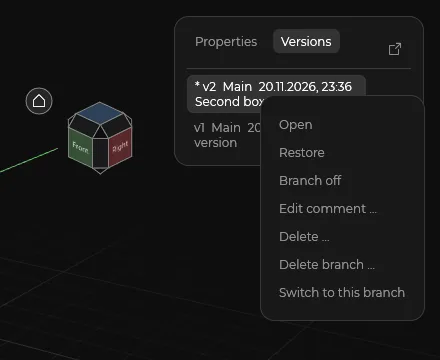
Every save creates a version. You can go back to an old version or branch off from it.
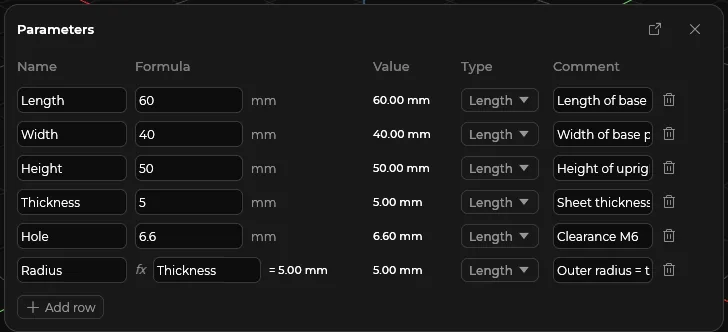
You can give dimensions a name. If you change a dimension, the part adapts.
On Windows, PlanoraCAD installs new versions from within the program if you like.
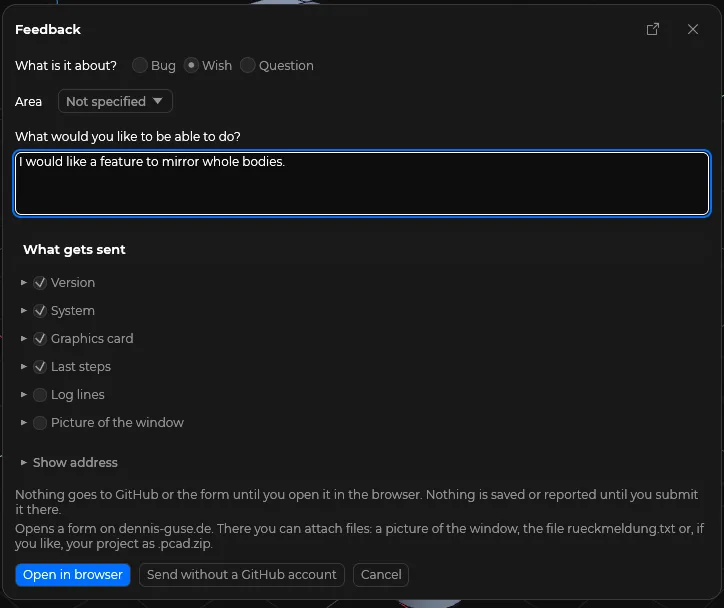
You report bugs and wishes directly in the program under Help → Feedback. Without a GitHub account you can use a form on this website. The program opens it for you and already fills in some fields.
This is an early version. Bugs are possible, and feedback is welcome.
This is an early developer version and not meant for everyday use yet. Expect bugs and back up important projects separately.
planoracad-setup-x64.exe.The current test version 0.0.2-dev.5 has been published on GitHub as a pre-release since 24 November 2026. New are, among other things, add-ins that extend the program, a window that remembers its size and position, and handles to drag on fillets, chamfers and construction planes.
All steps are in the user guide. There is no ready-made package for Ubuntu yet: you build PlanoraCAD yourself, the instructions are in the README on GitHub. There are no updates from within the program there.
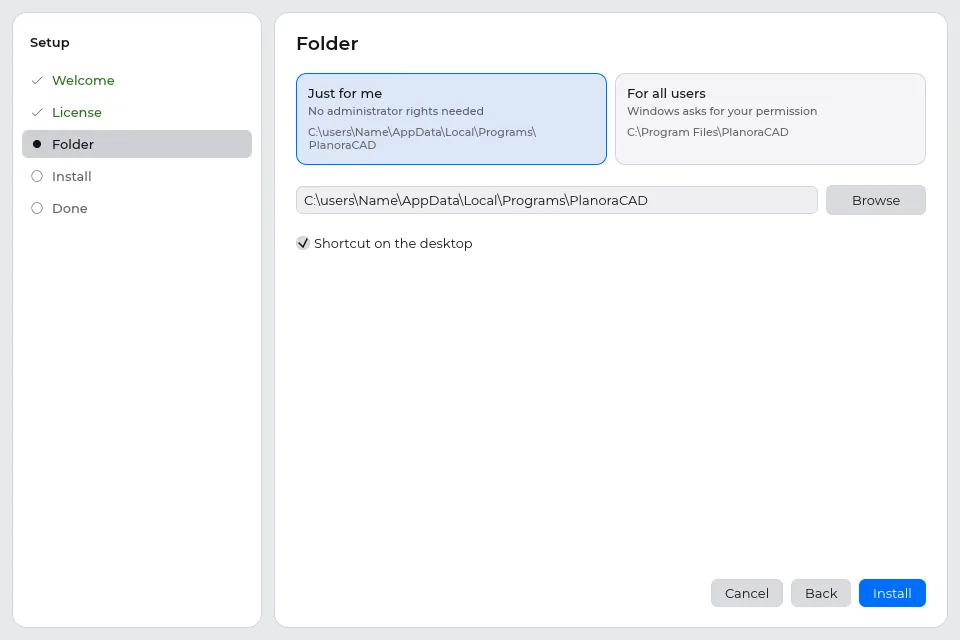
The user guide explains PlanoraCAD step by step: from installation and your first part to technical drawings. It also has a tool reference and a list of keyboard shortcuts. It is available in German and English.
Overview of your insurance contracts. Reads policies and reminds you of cancellation deadlines. Runs on your own server.
Shows in Claude Code how full the session is and advises you in good time to start fresh. With a handover note for the next session.