FAQ and troubleshooting
Startup and installation
Windows warns during installation ("Windows protected your PC"). The installer is not signed. Click "More info" and then "Run anyway". Only download the program from the releases page on GitHub.
Should I install "Just for me" or "For all users"? "Just for me" is usually enough. You don't need administrator rights for it. "For all users" is for computers where several people work with their own accounts. Windows then asks for administrator rights when installing and with every update.
How do I get rid of PlanoraCAD? In the Windows Settings under "Apps" → "PlanoraCAD" → "Uninstall". Your projects and settings are kept.
The installer says PlanoraCAD is still open. Save your work, close PlanoraCAD and click "Check again" in the installer.
The installer looks different from the pictures. If the installer window cannot open, for example because of an old graphics driver, a plain replacement starts. You can install with it just the same.
The program does not start because the antivirus program holds on to the file. Wait until the scan is finished, then start the program again.
The 3D view looks wrong or stays empty.
- Update the driver of your graphics card. The drivers are available from the card's manufacturer.
- Restart the computer.
- If that does not help, report the bug. Name your graphics card (see below).
Is there PlanoraCAD for Linux or macOS? PlanoraCAD also runs on Ubuntu. There is no ready-made package there yet: you build the program yourself from source, and there are no updates from within the program. How to do it is in the README on GitHub. A ready-made installer exists only for Windows (64-bit). There is no version for macOS.
PlanoraCAD does not open where I closed it. The program remembers size, position and screen of the window, also maximized. On Linux with Wayland the position is not saved. If the remembered position no longer exists, for example after unplugging a screen, the window opens at a suitable place. See The interface.
Can I change the language or the unit? Yes. Under "File" → "Settings …" you choose English or Deutsch under "Language", and millimeters or inches under "Unit of length". See Settings and updates.
Updates
The update does not work.
- Did you decline the Windows request for administrator rights (with "For all users")? Then the current version keeps running. Start the update again and answer "Yes".
- Does the notice only show "Open download page"? Then the program was not installed with the installer. Download
planoracad-setup-x64.exeand install it. - Otherwise download the new installer yourself from the releases page and run it. More under Settings and updates.
Does the program remember whether I chose light or dark? Yes. It starts with the theme you chose last.
Modeling
I get an error message instead of a result (union, fillet, section …). PlanoraCAD would rather refuse a calculation than deliver a wrong result. The step in the feature tree then shows "Error", and the reason is shown on the right. This often helps:
- move the body a little,
- change a dimension slightly so that faces do not touch exactly,
- choose a smaller radius,
- fillet fewer edges at once.
For a value in a field, the reason is shown right beside it: "Value too small" (below 0.01 mm), "Value too large" or "Does not fit here". A plane through three points that lie almost on one line is rejected.
What does "skipped" mean in the feature tree? The step builds on a step with an error or on a suppressed step. Fix the step before it first.
I find no area to click when extruding. Only areas that are closed all around are profiles. Usually the ends of two lines do not lie exactly on top of each other. Add the "Coincident" constraint. Construction lines do not bound profiles. Switch on "Show Profile" in the "Display options" of the sketch palette, and you see all profiles shaded. See Creating bodies.
The message line says the mesh is inexact. The display on the screen has tiny gaps. The body itself is correct. For the export you can choose a finer quality.
The program does not respond for a few seconds. Some calculations take longer, especially with bodies made of ellipses and splines. Wait a moment; the window responds again afterwards.
I can no longer add anything to a body. The marker in the history bar is not at the end. Push it all the way to the right or choose "Edit" → "To end of timeline".
Is hiding saved? Yes. Whatever you hide or show with the eye is saved with the document. The camera position is not saved.
Sketches
While I draw, keys like L or C do nothing. That is intended. As soon as you type, the characters go into the fields next to the pointer. First finish the point with Enter or the tool with Esc. If nothing has been placed yet, Esc ends the tool at once.
While I drag a pattern it says "Cannot be solved: …". The program refuses the drag and names the reason, for example "The pattern direction lines are parallel." Change the pattern so that the reason no longer applies.
How do I take back a drag on a handle? Press Esc or right-click while dragging. This takes back just this drag.
Drawing creates constraints I don't want. Hold Ctrl while clicking. Or switch off "Automatic constraints" in the sketch palette.
Some curves in the sketch are purple. These are projected curves. They follow the body they come from. "Break Link" turns them into normal fixed curves. See Projecting and construction planes.
My sketch shows a warning sign in the feature tree. A projected curve has lost its reference, for example because the body changed. The curve stays at its last position. How to relink it is described under Lost projections. For text, the sign means the font is missing on this computer, and the program uses Montserrat.
I cannot see my sketch because a body is in front of it. Bodies hide sketch lines that lie behind them. This is intended. Open the sketch and tick "Slice" in the "Display options". It cuts away everything between the camera and the sketch plane. See Drawing and dimensioning sketches.
How do I pass on a sketch for a laser cutter or a milling machine? Right-click the sketch in the feature tree and choose "Save As DXF". Only flat sketches work. See Text, DXF, SVG and canvas.
How do I use a photo as a template? With "Insert" → "Canvas …". See Text, DXF, SVG and canvas.
Add-ins
Where do I find the add-ins? Under "File" → "Add-Ins" → "Manage …". See Add-ins.
An add-in has failed. PlanoraCAD keeps running. Click "Restart" in the message. If it fails several times, it stays off until the next program start.
Saving and files
Where are my files?
By default in the folder Documents\PlanoraCAD. See Projects and saving.
Can I get an older version back? Yes. Open the "Versions" tab on the right, right-click the version and choose "Restore".
The document is "locked". The document is open in another PlanoraCAD window, or the program was not closed properly. Close the other window or choose "Take over lock".
Can I still use undo after a restart? No. The undo history only lasts while the program is running. You get older states back through the versions.
An older program version says my file was created with a newer program version. The file was saved with a newer version and uses something the old version does not know yet. Since 0.0.2-dev.2 this applies, for example, to centerlines, patterns, text, canvases, construction planes, hidden objects, 3D sketches and drawings in inches. Since 0.0.2-dev.3 sketches with a curvature comb, blend curve, sketch groups, spun profile, isoparametric curve, a text height with a formula or display ticks set differently (for example "Slice") are added. Update the program. Files without such things also open in older versions.
My projects are in a cloud folder (OneDrive, Dropbox …) and the "Projects" window takes long to load. For the thumbnails the program reads all documents. If the files are only in the cloud, they are downloaded in the process.
Drawings
Exporting the drawing is locked. Check whether a dimension is red or a balloon shows a red "?". Delete these elements or place them again. Dimensions and balloons on hidden bodies do not count here.
A body is missing in the drawing, or below the drawing it says "N hidden bodies are not in the parts list." Hidden bodies (eye in the feature tree) do not appear in the views, the export (PDF, DXF, SVG) or the parts list. Show them again and everything is back. See Creating a technical drawing.
My drawing used to be rejected for a body lying at an angle. Sections and views now also work for bodies in a general position, for example spheres, cones or cylinders drilled at an angle.
The drawing shows yesterday's date. The date follows universal time (UTC). Shortly after midnight it still shows the previous day. You can enter the date yourself in "Sheet info".
How do I print a drawing? Export it as a PDF and print the PDF. See Creating a technical drawing.
Crash and crash report
The program crashed. Is my work lost? Documents that have already been saved are backed up automatically every 2 minutes. The next time you open them, the program offers "Autosave found". Choose "Restore". Documents that were never saved have no autosave.
At startup it says "PlanoraCAD crashed last time". During the crash, the program wrote a short report. On Windows this also applies to hard crashes, such as an access violation. The report stays on your computer only and does not contain your user name. You have these options:
- "View report": shows what it contains.
- "Open as feedback": opens the "Feedback" window with the report. If you like, the program adds your open project as a ZIP file (
.pcad.zip). For the form it may be at most 25 MB. - "Open folder": shows the folder with the reports.
- "Not now": the question comes back at the next start.
- "Delete": deletes the report.
The report never leaves your computer without your action.
At startup it says "PlanoraCAD closed unexpectedly last time". The program was closed without writing a report, for example during a power cut or when it was ended in Task Manager. The program still offers "Open as feedback". It then attaches the last steps and the log so that it is possible to follow what happened last. If you like, add a short note on what you did last. Nothing is sent without your action.
Reporting bugs and requesting features
Found a bug, missing something, or have a question? Then please tell us. Two sentences are enough.
From the program (with or without a GitHub account):
- Choose "Help" → "Feedback …" or press Ctrl+Shift+R.
- Under "What is it about?", choose Bug, Wish or Question. Under "Area" you can say where the problem is.
- Briefly write what you did and what happened (at least 10 characters).
- Under "What gets sent" you see every piece of information the program adds: version, system, graphics card, last steps, and if you like log lines and a picture of the window. The small arrow shows the exact text, the checkbox removes the item. The program has already removed your user name, project paths and e-mail addresses.
- Click "Open in browser" if you have a GitHub account. Without an account, click "Send without a GitHub account". A form on dennis-guse.de then opens.
- Check the details in the browser and send the form. You attach pictures and files there. For this, the program opens a folder with the prepared files.
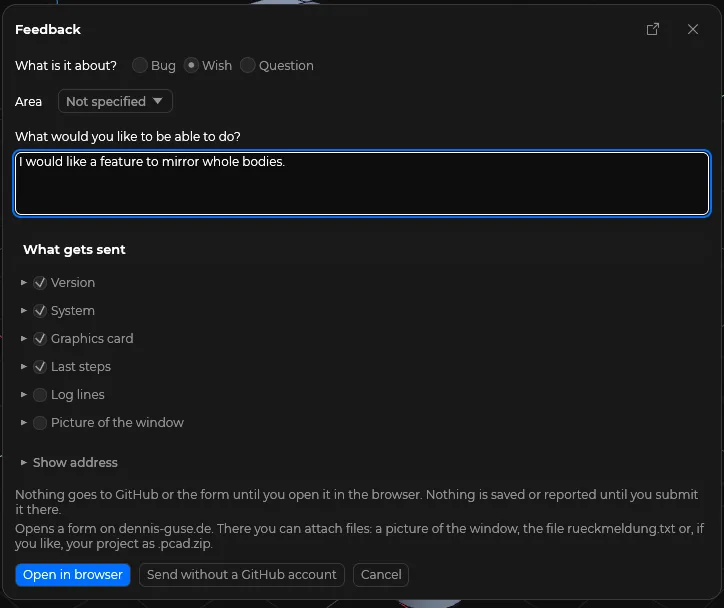
The details are part of the form's address. They therefore already go to GitHub or dennis-guse.de when the page opens in the browser. Nothing is stored or reported until you send it there.
Directly on GitHub: open New issue, choose "Report a bug" or "Wish or question" and fill in the form. You can simply drag pictures into the text field.
If neither works, for example because no browser opens, write an e-mail to info@dennis-guse.de.
You can support good requests from others on GitHub with 👍. The project board shows which requests are planned and what is being worked on.
Issues on GitHub are public. Do not write anything private in them.
Known limits
PlanoraCAD is at an early stage of development. These features are still missing:
- revolving by an angle other than 360°
- patterns and mirroring of bodies (only possible in the sketch)
- hole tool, measuring tool, copy and paste
- bodies along a path (sweep, pipe) or between two profiles (loft)
- DWG files
- detail views, half sections and free text in drawings
- merging version branches