Keyboard shortcuts
The keyboard shortcuts follow common CAD programs. You can change every shortcut in these tables. Many more commands have no key by default. You can give them one in the settings.
Everywhere
| Action | Key |
|---|---|
| New document | Ctrl+N |
| Projects | Ctrl+O |
| Save | Ctrl+S |
| Close document | Ctrl+W |
| Export | Ctrl+Shift+E |
| Give feedback | Ctrl+Shift+R |
| Undo | Ctrl+Z |
| Redo | Ctrl+Y or Ctrl+Shift+Z |
Mouse in the view
| Action | Gesture |
|---|---|
| Rotate view | Drag with the left mouse button, or Shift + drag with the middle mouse button |
| Pan view | Drag with the middle mouse button, or Shift + drag with the left mouse button |
| Zoom view | Mouse wheel, or Ctrl + mouse wheel |
Model
| Action | Key |
|---|---|
| Extrude sketch | E |
| Fillet | F |
| Toggle visibility | V |
| Delete | Delete |
| Repeat last command | Space |
| Show keyboard shortcuts | S |
Sketch
| Action | Key |
|---|---|
| Line | L |
| 2-Point Rectangle | R |
| Center Diameter Circle | C |
| Project | P |
| Sketch Dimension | D |
| Trim | T |
| Sketch Fillet | F |
| Offset | O |
| Move/Copy | M |
| Toggle construction | X |
| Copy | Ctrl+C |
| Cut | Ctrl+X |
| Paste | Ctrl+V |
| Repeat last sketch tool | Space |
| Show keyboard shortcuts in sketch | S |
In the 3D sketch
| Action | Key |
|---|---|
| Switch Triad Plane | Alt (pressed on its own) |
| Switch Triad Handle | Tab |
| Lock Z Position | Up Arrow (hold down) |
Drawing
| Action | Key |
|---|---|
| Dimension | D |
| Balloon | B |
No key by default
You can assign a key to these commands in the settings, for example:
- all kinds of rectangle, circle, arc, polygon and slot,
- Extend, Break, the chamfers, Sketch Scale, Rectangular Pattern and Circular Pattern,
- Fit Point Spline, Control Point Spline, Conic Curve, Tangent Handle, Curvature Handle,
- Concentric, Collinear, Curvature, Centerline, Break Link,
- Intersect, Silhouette, Include 3D Geometry, Text,
- Look At, Sketch Grid on/off, Snap on/off,
- the five construction planes and Redefine Sketch Plane,
- Insert DXF, Insert SVG, Canvas and Calibrate,
- Create Sketch, Edit Sketch, Hide and Show Dimension (finished sketch), Save As DXF, Create Group and Ungroup, Manage Lost Projections,
- Midpoint Line, Blend Curve, Spun Profile, Isoparametric Curve, Toggle Curvature Display, Find Under-Constrained, Compute Sketch,
- the ticks for the display of the sketch: open display options, Slice, Show Profile, Show Points, Show Dimensions, Show Constraints, Show Construction Geometries and Show Projected Geometries.
Fixed keys
These keys cannot be changed:
| Where | Key | Effect |
|---|---|---|
| 3D view | Esc | Clear selection |
| Create Sketch (choosing a plane) | Esc | Cancel |
| Sketch | Esc | Cancel the tool, end the polyline. If nothing has been placed yet, Esc ends the tool. |
| Sketch (while dragging a handle) | Esc or right click | Take back just this drag |
| Windows for creating and editing | Esc / Enter | Cancel / confirm, also in a number field (not in the "Sheet info" window) |
| Sketch | Enter | Place the point with the typed values, create the spline |
| Sketch | Tab | Next field at the pointer |
| Sketch | Delete | Delete the selection |
| Drawing | Esc | End the tool |
| Drawing | Delete | Delete the selected balloon |
| History bar | Left / right arrow | One step back / forward |
| "Projects" window | Tab / Enter | Switch tile / open |
Good to know
- Shortcuts do not work while you type in a field or while a window is open. While drawing, typed characters go into the fields at the pointer.
- If you hold Ctrl while drawing, there is no snapping and no automatic constraint for that point.
- Modifier keys count exactly. Ctrl+Alt+Z does not do the same as Ctrl+Z.
- "Repeat last command" remembers Create Sketch, Extrude sketch, Fillet and the sketch tools.
- With a sketch open, Ctrl+Z only undoes drawing steps. It undoes the display ticks (for example "Slice") only after you have finished the sketch.
Looking up shortcuts
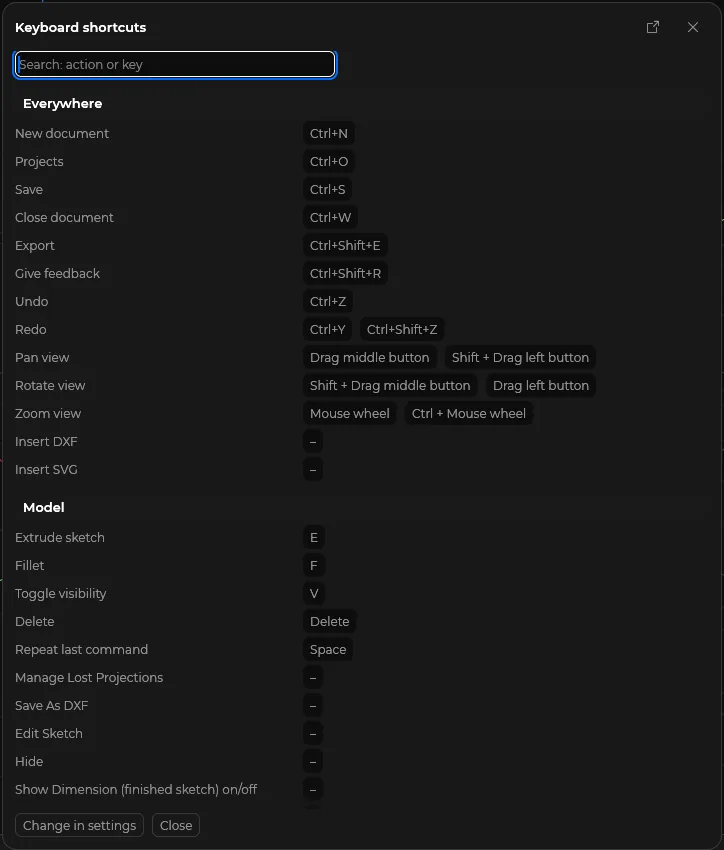
Press S or choose "View" → "Keyboard shortcuts …". An overview with a search field opens. You can search for an action or a key. The "Change in settings" button takes you straight to changing them.
Changing shortcuts
- Choose "File" → "Settings …".
- Go to the "Keyboard shortcuts" section.
- Find the action in the table. The search helps.
- Click "Change" and press the new key. For mouse gestures, hold the mouse button and drag, or turn the mouse wheel.
- "Add" creates a second binding, "Remove" deletes one.
If the key is already taken, the program offers "Swap". "Reset" resets one shortcut, "Reset all" resets all of them.
Note
Some special keys are shown with the name from the US keyboard layout. On a German keyboard, Ü for example appears as "Open Bracket".