Homedeck Edge
Brings your Home Assistant to the CORSAIR XENEON EDGE touchscreen as glowing live tiles: switch and dim lights and heating.
 Beta
Discord control for the touchscreen
Control Discord from the CORSAIR XENEON EDGE touchscreen: voice channel, chat and direct messages, without leaving your game.
When you play or stream, you do not want to leave the game just to turn someone down in Discord or to mute yourself.
Voicedeck Edge puts Discord on the wide display of your XENEON EDGE. You see who is in the voice channel and who is talking, and you control everything with a tap.
It is made for gamers and streamers who have a XENEON EDGE and use Discord.
| System | Windows 10/11, 64 bit · CORSAIR iCUE 5.52 or newer · XENEON EDGE · Discord desktop app |
|---|---|
| Status | Version 0.9.8 (beta) |
| License | MIT (free software) |
| Technology | C#/.NET 8 (helper program), HTML/CSS/JavaScript (iCUE widget) |
| Source code | GitHub |
| Downloads | GitHub Releases |
| Setup guide | Setup on GitHub |
| Privacy | Privacy on GitHub |
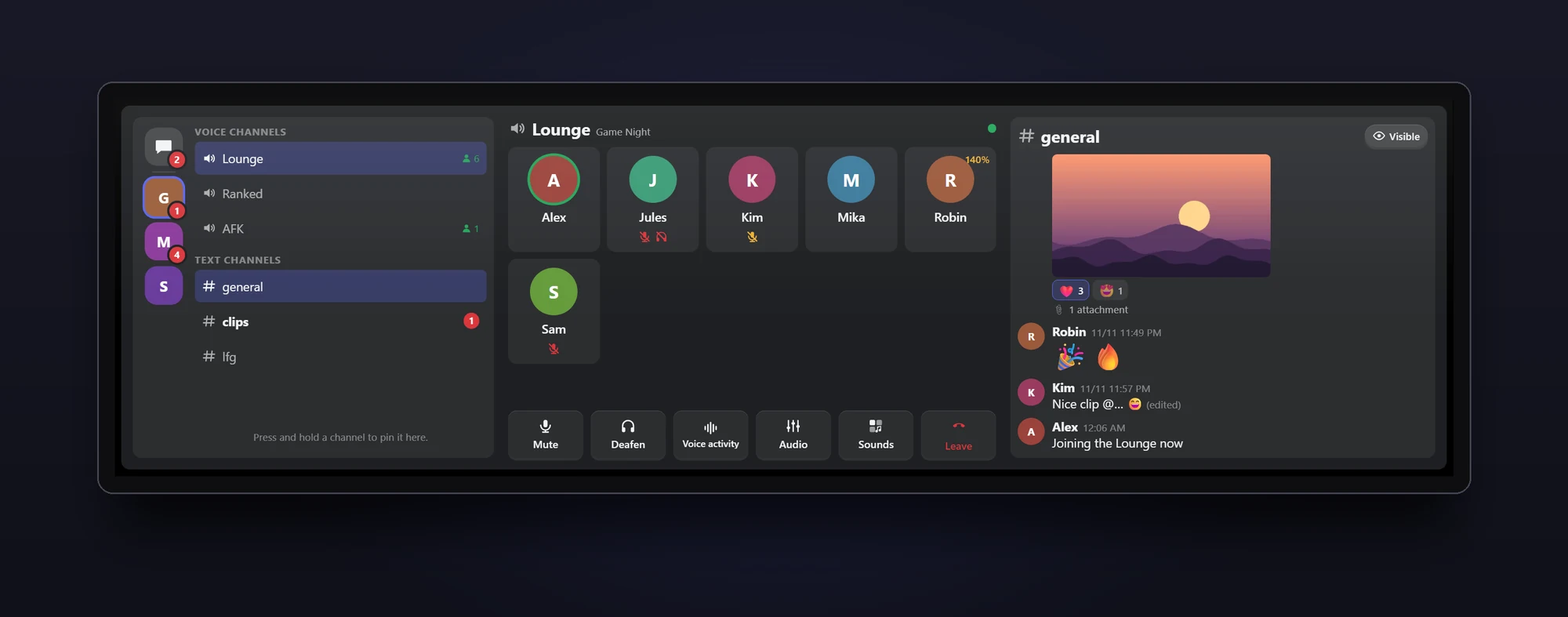
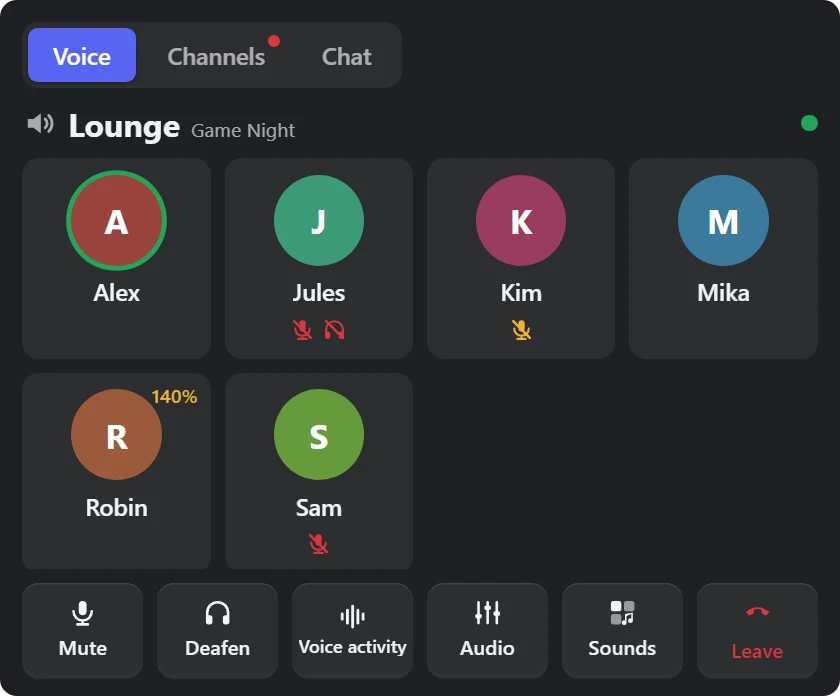
The widget comes in the sizes Medium, Large and XL. The bigger it is, the more you see at once.
One view at a time: voice channel, channels or chat. The picture shows the voice channel. Whoever talks has a ring, muted people have a symbol.
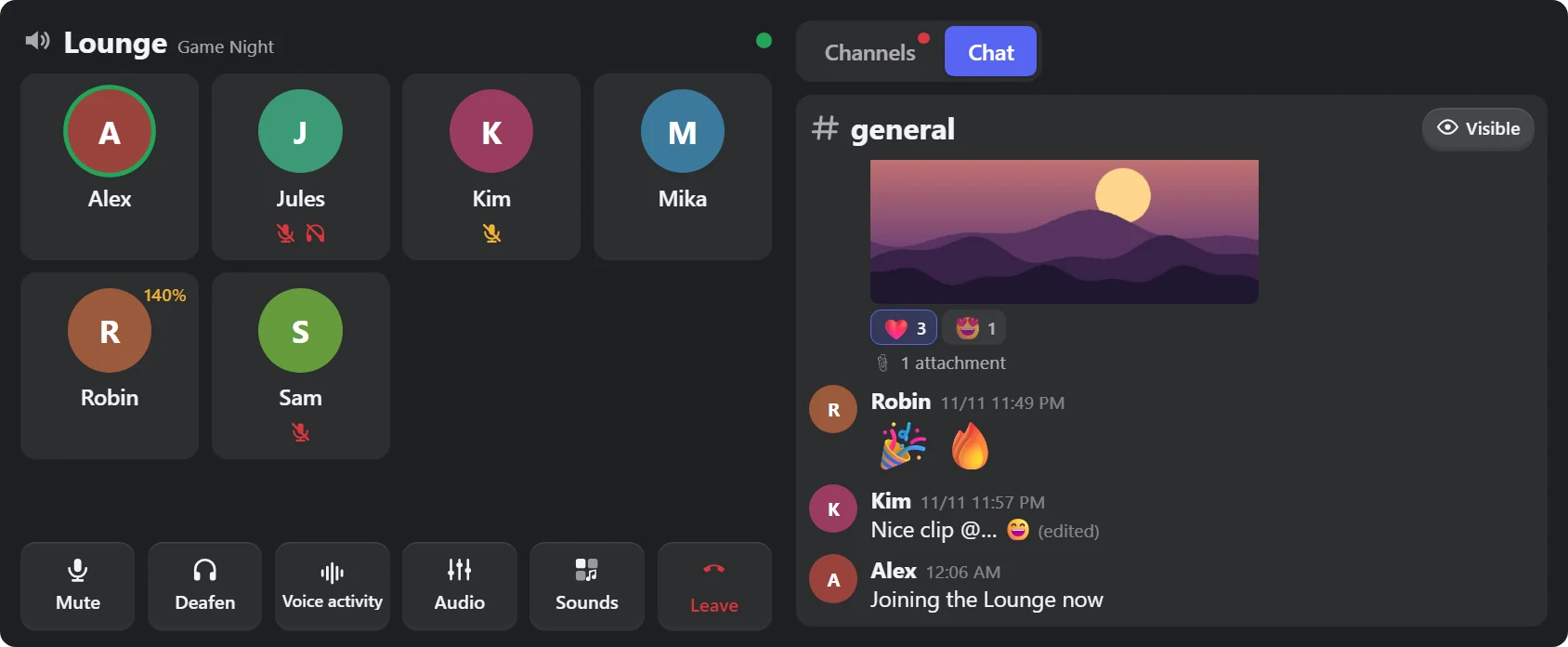
Voice channel and chat side by side, also with pictures, emojis and reactions.
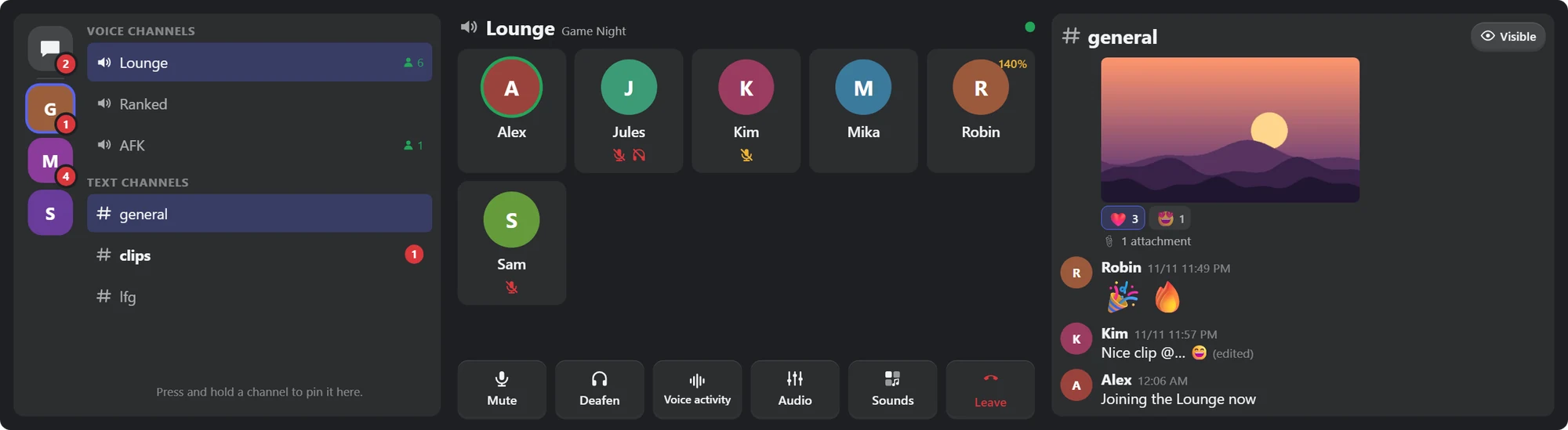
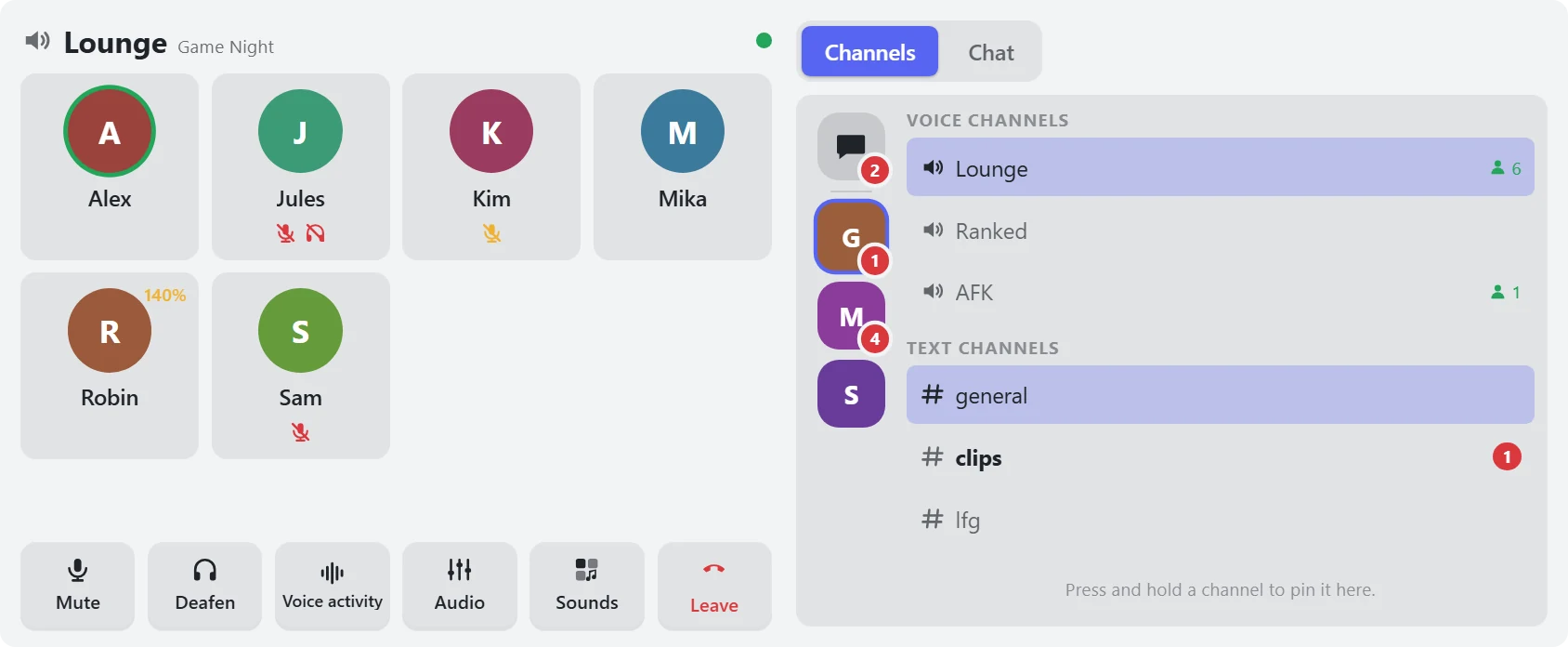
Channels, voice channel and chat side by side.
Every person gets a slider of their own. That way you turn down a player who is too loud without changing the others.
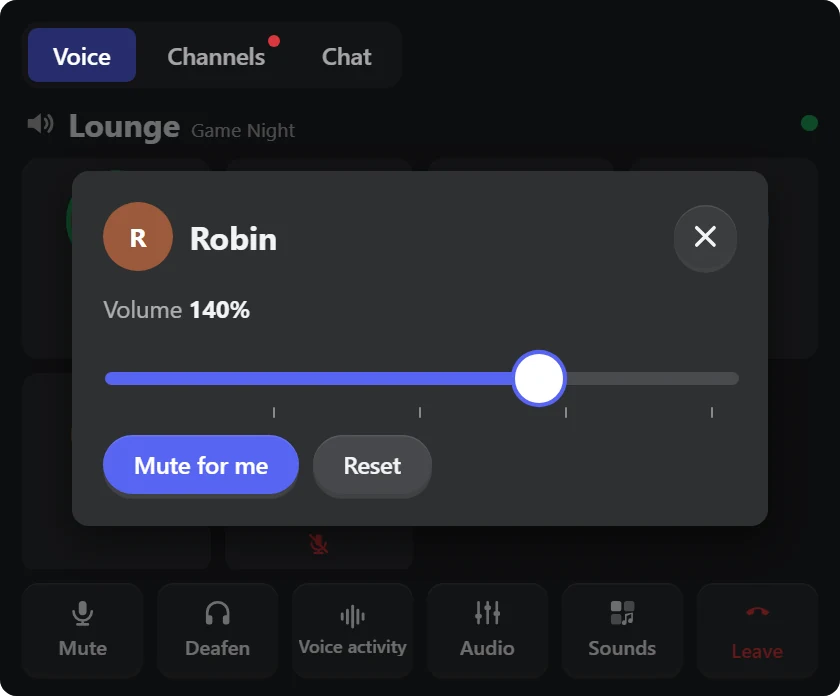
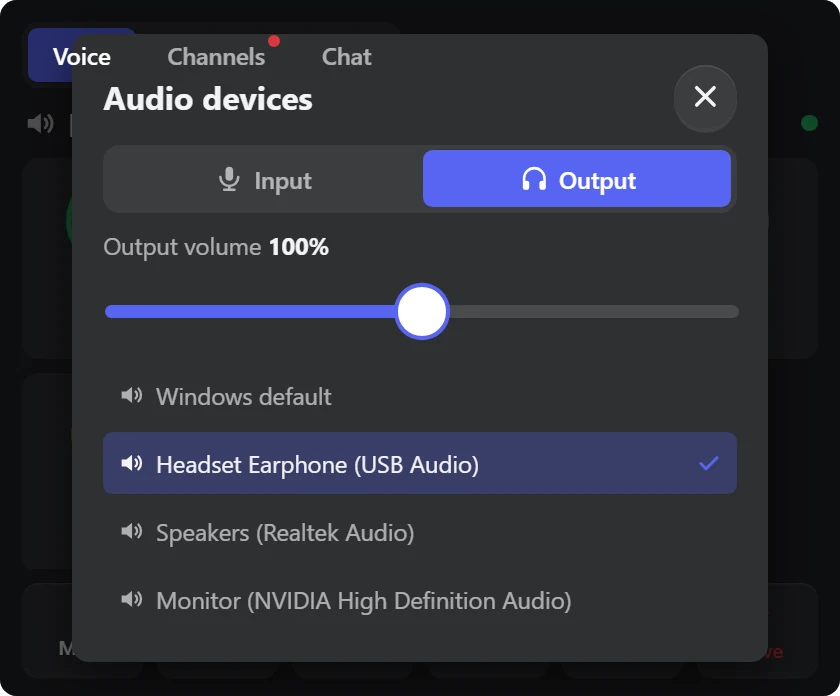
The “Audio” button in the control bar picks your microphone and headphones or speakers for Discord and sets input and output volume. That is handy when you switch between a headset and speakers.
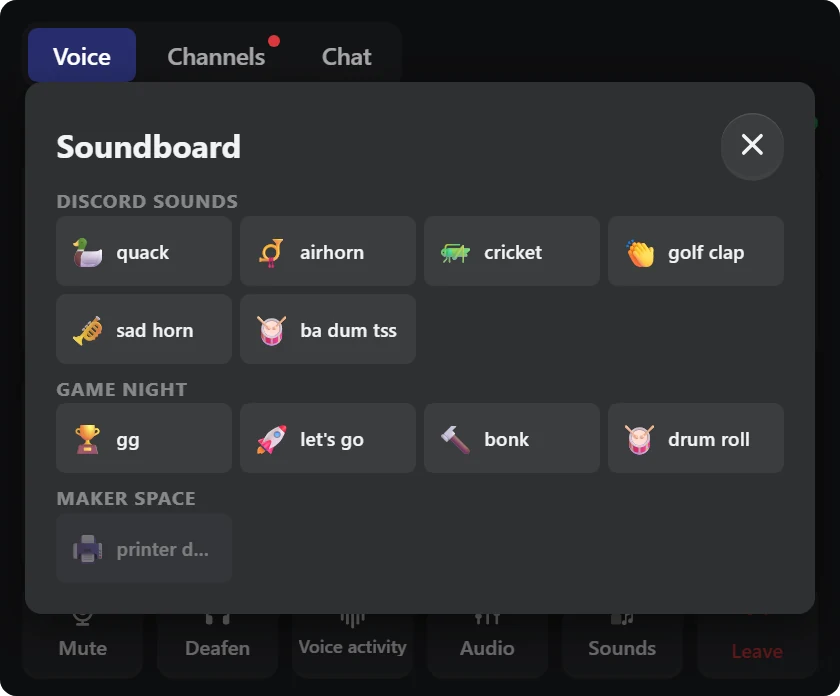
The “Sounds” button opens the soundboard: Discord's sounds and your servers' sounds as tiles, grouped like in Discord. Tap a sound to play it in your voice channel. Press and hold a sound to make it a favorite, and it moves to the top. Greyed-out sounds are not available at the moment.
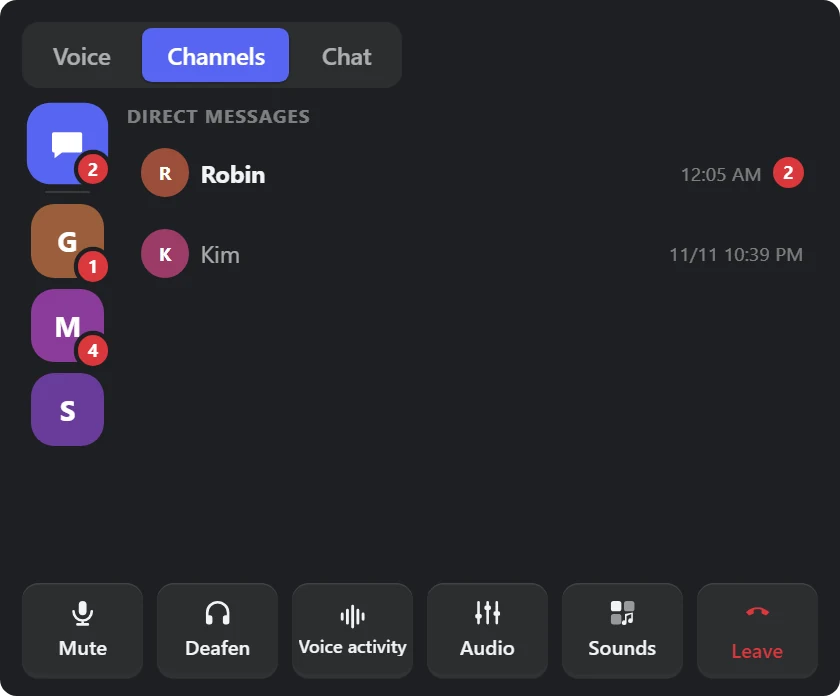
The widget shows your direct messages with a counter for new ones. They only appear when someone writes while the program is running.
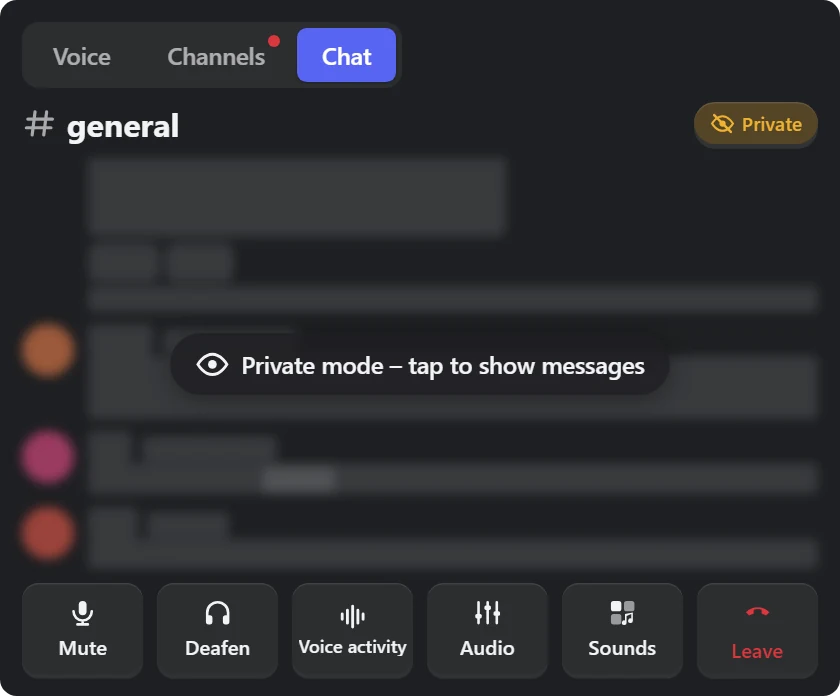
Chat text, pictures, emojis and reactions stay hidden until you tap. That way your audience does not see by accident what is in the chat.
Press and hold a server icon and drag it into place. That way you set the order once, just like in Discord. For new messages that Discord notifies you about, the widget shows red numbers on servers and text channels. These are mentions or, on servers set to “All messages”, all messages. Opening the channel in the widget clears the number.
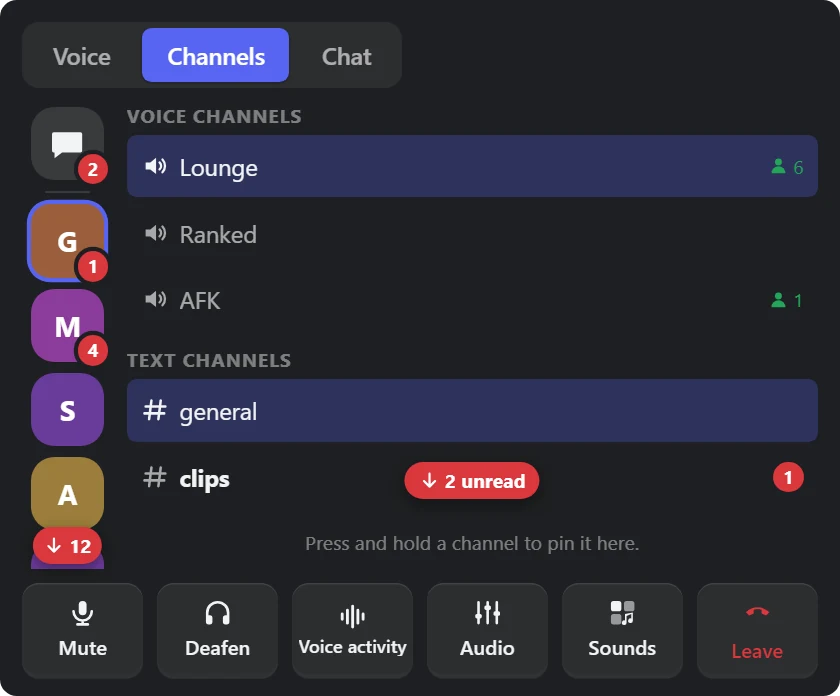
When a server or channel with new messages is scrolled out of view, a red pill at the top or bottom edge of the list shows how many, for example “↓ 12” in the server column or “↓ 2 unread” in the channel list. Tap it to jump there. Large servers now open reliably, too.
You can choose a dark or light design or match iCUE. You can also set your own background picture and the text size.
iCUE normally swallows swipes over touch widgets. Voicedeck Edge recognises the swipe itself and turns the Edge page for you. Set it up once:
You can turn this off in the widget settings (“Swipe to change pages”).
VoicedeckEdge-Setup-0.9.8.exe. Start it. You do not need administrator rights.Updates are easy: with the update check switched on, the program tells you when a new version is available. After installing, the assistant opens by itself and one click adds the new widget to iCUE.
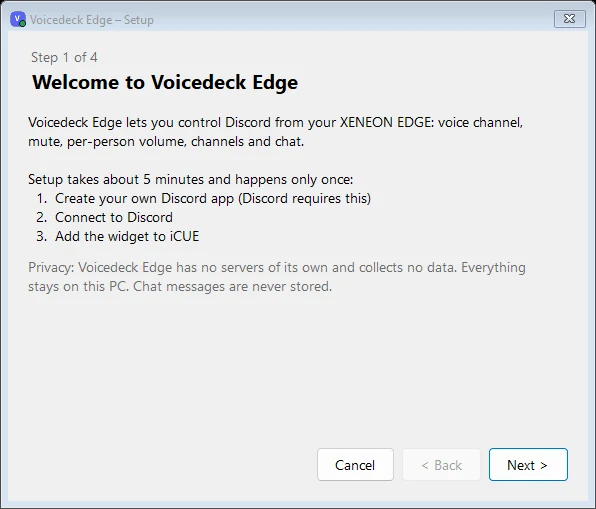
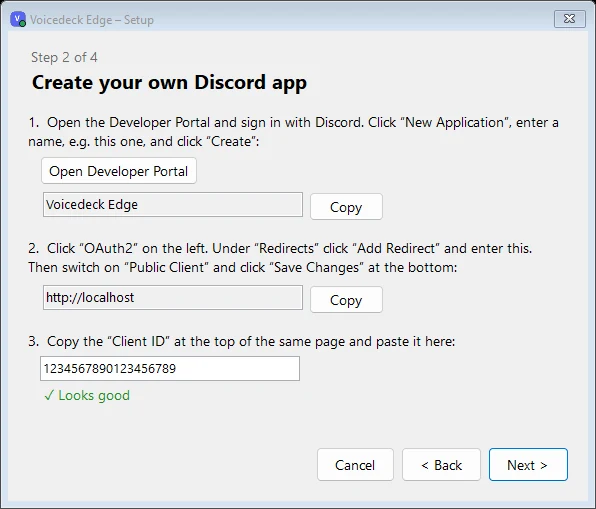
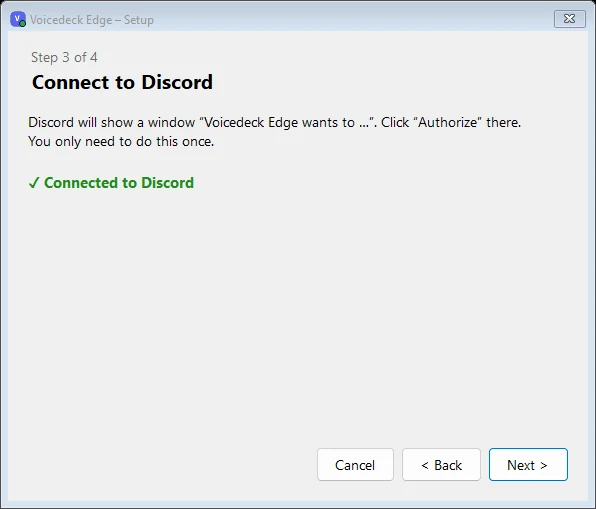
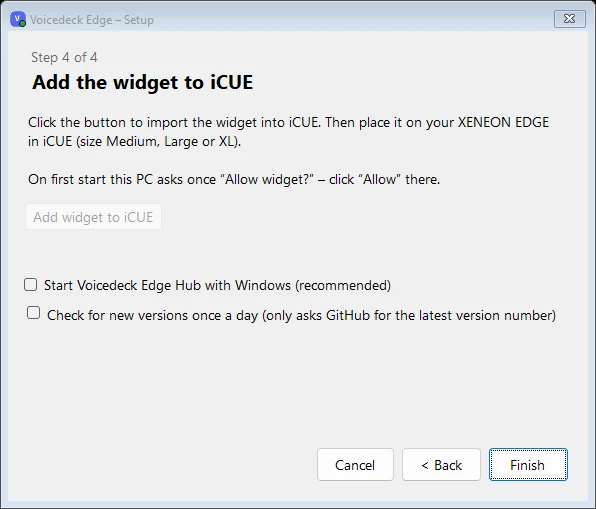
The four pages of the setup assistant. All steps with pictures are in the setup guide on GitHub.
Brings your Home Assistant to the CORSAIR XENEON EDGE touchscreen as glowing live tiles: switch and dim lights and heating.
Shows a calm space scene with a big clock on the CORSAIR XENEON EDGE touchscreen, plus tasks, calendar, timer, music and shortcuts.
Shows temperature, load and FPS of your PC on the CORSAIR XENEON EDGE touchscreen, with 55 styles and a temperature warning.
Gives every app on your PC its own volume slider on the CORSAIR XENEON EDGE touchscreen, with automatic ducking during calls.
Shows in Claude Code how full the session is and advises you in good time to start fresh. With a handover note for the next session.
Free 3D CAD program for Windows: sketches, bodies and technical drawings, for 3D printing and other CAD programs. Early test version.
Voicedeck Edge is an independent project and is not affiliated with Discord Inc. or CORSAIR. Discord, iCUE and XENEON are trademarks of their respective owners.