3D sketch
In a 3D sketch you draw curves freely in space, for example the route of a pipe or a cable. You can also bring edges of bodies into the sketch at their real position.
3D curves do not form profiles and therefore no bodies. They serve as a reference and as a help when designing. You can project them into other sketches.
Switching it on
- Open a sketch.
- In the sketch palette on the right, tick "3D Sketch".
The box belongs to the sketch and is saved with it. If you untick it again, everything you have already drawn stays.
The triad
When the box is ticked and a drawing tool is chosen, the triad appears. It has three colored planes (XY, YZ and ZX), three axes and three rotation arcs. The active plane is the plane you are currently drawing in.
- The triad starts at the origin with the XY plane. After each point you place, it jumps to that point.
- Clicking a plane square makes that plane active.
- Alt (pressed on its own) switches to the next plane.
- Dragging a rotation arc rotates the plane, in steps of 15°. The angle appears in a field next to the pointer.
- Tab makes one rotation arc after the other active. You can then type the angle.
- Right-click the triad to reach "Reset Triad Orientation", "Show Rotation Handles" and "Show Planes".
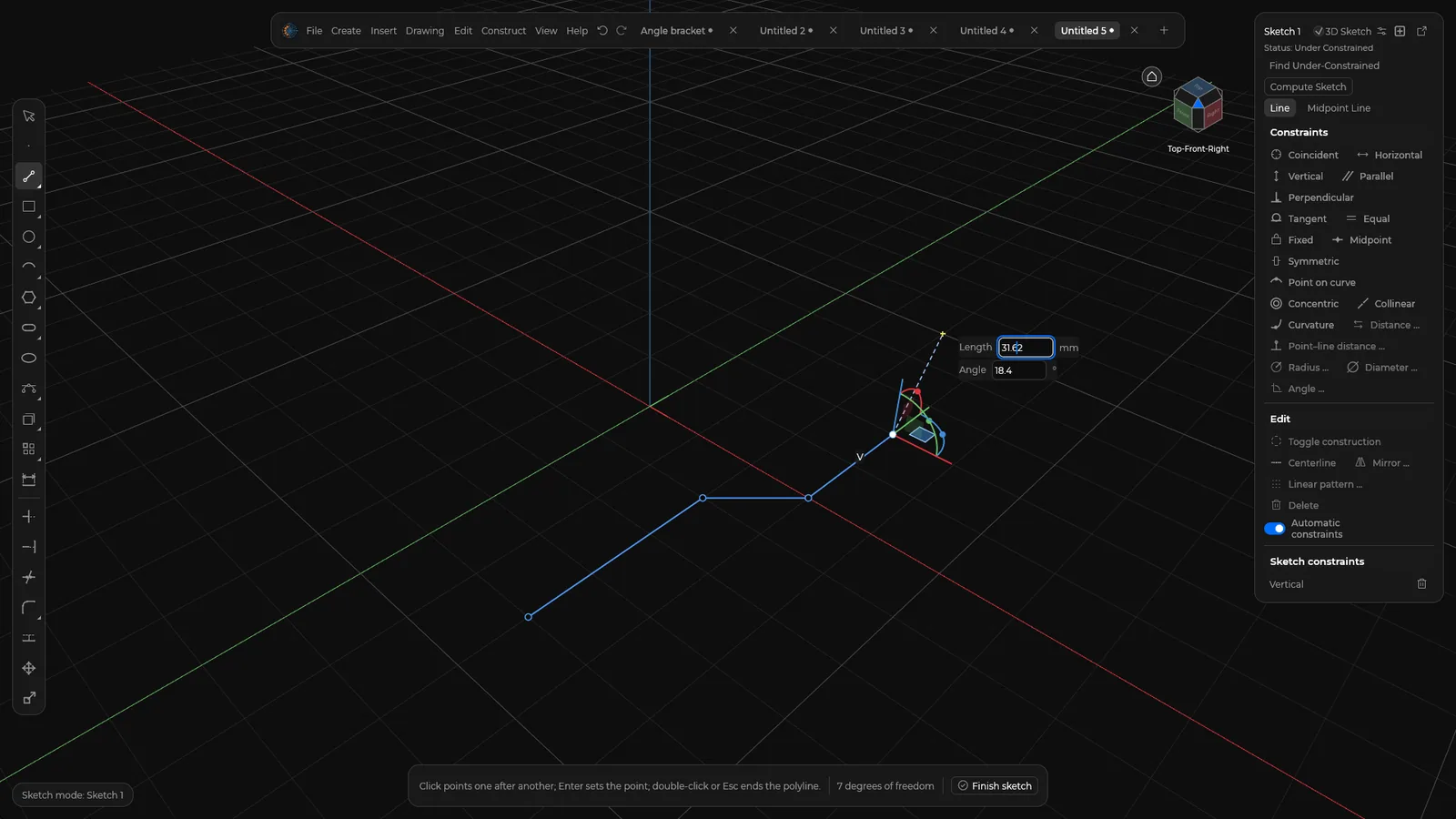
Placing points
- A click places the point on the active plane.
- When you move along an axis of the triad, a dashed extension appears and the point snaps onto it.
- Hold the Up Arrow key: the point then stays at its place in the plane and only moves up or down.
- Line and spline show the fields length and angle at the pointer.
- If you look at the active plane almost edge-on, a click places nothing. Rotate the view then.
You can change the triad keys (Alt, Tab and Up Arrow) in the settings.
What you can draw in 3D
Line, arc, spline, rectangle, circle, ellipse, point, text, conic curve, polygon and slot, each in all its kinds. Flat shapes such as circles and rectangles are created in the active plane of the triad.
Circle, polygon and rectangle show the same fields at the pointer as in 2D. So you can type values. The fields do not accept mouse clicks: a click sets the point as usual. The "2-Tangent Circle" also asks for the radius. The "Edge Polygon" asks for length, angle and number of sides. For the other flat shapes you set the dimensions afterwards.
If you draw in the sketch plane itself, you get completely normal 2D geometry that forms profiles.
Constraints and dimensions
These constraints also work on 3D curves: Coincident, Horizontal, Vertical, Tangent, Equal, Parallel, Perpendicular, Fixed, Midpoint, Concentric and Collinear. In space, Horizontal and Vertical mean "parallel to the X axis" and "parallel to the Y axis". For the Z axis there is "Along Z".
You can dimension with distance, length, radius, diameter and angle. Horizontal and vertical dimensions do not exist on 3D curves.
Bringing geometry into the 3D sketch
The "Project/Include" flyout has four commands for this:
- "Include 3D Geometry": click edges, faces or vertices of bodies, construction planes, axes, the origin or curves of earlier sketches. They come into the sketch at their real position, in purple, and follow the body when it changes. This also works without the "3D Sketch" box.
- "Project To Surface": choose faces and curves in the window. The curves are laid onto the faces. With "Closest Point" every point moves to the nearest place on the face, with "Along Vector" in a direction you choose. Only curves of other, earlier sketches can be used.
- "Intersection Curve": choose a curve of an earlier 2D sketch and then faces, planes or curves. The curve is extended in the direction of its sketch plane. Where it meets them, a 3D curve is created.
- "Isoparametric Curve": choose a face of a body and, if you like, a point on it. The U or V lines of the face enter the sketch as 3D curves. The sketch becomes a 3D sketch. More about this is on Projecting and construction planes.
If a source changes so that it no longer fits, the curves stay at their last position. The sketch then shows a warning. What to do when a body has been deleted is described under Lost projections.
Moving out of the plane
In a 3D sketch, "Move/Copy" also has the fields "Z Distance", "X Angle" and "Y Angle", plus a Z arrow and two rotation arcs. Whatever you move this way becomes 3D geometry. Constraints that do not exist in space are removed. The message tells you how many.
Older program versions
Sketches with 3D content or with the "3D Sketch" box ticked are saved in a newer format. An Isoparametric Curve needs file format 22. Older versions of PlanoraCAD cannot open such files.
Limits
- 3D curves do not form profiles.
- Trim, extend, break, fillet, chamfer, offset, pattern, mirror and scale do not work on 3D curves.
- Other constraints, for example Symmetric, are locked on 3D curves. A hint tells you why.
- Pulling a body along a 3D curve (sweep or pipe) does not exist yet.
- Long chains of many 3D curves can be dragged much faster since 0.0.2-dev.3 than before.
- There is no blend curve in a 3D sketch.
- The position of the triad is not saved.
Next: Creating bodies