Import and export
This is how you bring in files from other programs and export your parts.
Which format for what?
| Format | Direction | What for |
|---|---|---|
| STL | import and export | 3D printing |
| OBJ | import and export | many 3D programs |
| 3MF | export only | 3D printing, with the names of the bodies |
| glTF (.glb) | export only | viewing and showing, for example in a browser |
| STEP (.step, .stp) | import and export | other CAD programs, exact shape |
| SVG | export (drawing), insert into a sketch | graphics programs, web |
| DXF | export (drawing), save a sketch as DXF, insert into a sketch | other CAD programs in 2D, laser cutters and milling machines |
| PNG, JPG, TIFF | insert as a canvas only | a picture as a template to trace |
| export only (drawing) | printing and sharing |
STL, OBJ, 3MF and glTF describe bodies as a mesh of triangles. That is enough for 3D printing. STEP describes the exact shape. Use STEP if you want to continue working in another CAD program.
You bring DXF, SVG and pictures into a sketch through the "Insert" menu. How that works is explained under Text, DXF, SVG and canvas. There you also learn how to save a finished, flat sketch as a DXF file.
Import mesh (STL, OBJ)
- Choose "File" → "Import mesh …".
- Click "Choose file (STL or OBJ)" and pick the file.
- The program checks the file. It shows the number of triangles and whether the mesh is closed.
- Enter a "Name".
- Choose the "Unit of the file": millimeters, centimeters, meters or inches.
- Click "Import".
The mesh becomes a mesh body. You can view, move, rotate, scale, measure and export mesh bodies again. You set position, rotation and scale on the right under "Properties".
Mesh bodies do not support:
- union, subtract, intersect,
- fillet and chamfer,
- sketches on their faces,
- technical drawing and parts list,
- STEP export.
Colors and materials from the file are not taken over. Very large meshes with more than 5 million triangles are only shown partly.
Import STEP
- Choose "File" → "Import STEP …".
- Choose a file ending in
.stepor.stp. - The window lists all bodies in the file with name, number of faces, size and status:
- "will be imported"
- "will be skipped: …" with the reason
- Untick bodies you don't need.
- Check the "Unit of the file".
- Click "Import".
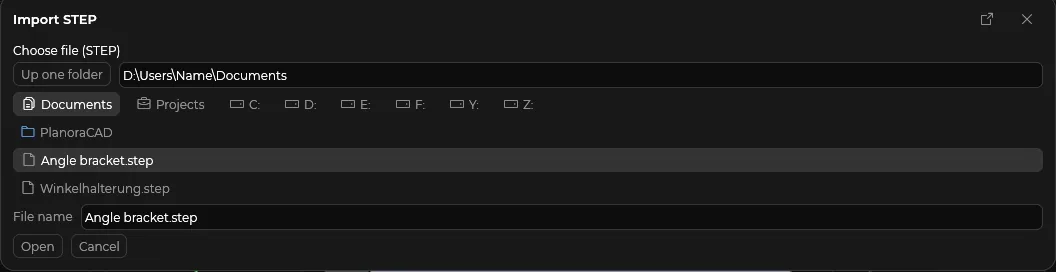
For assemblies, each body is inserted separately at its place. The assembly structure is lost. A whole import can be undone in one go.
The shape of imported STEP bodies cannot be changed through dimensions. On the right under "Properties" you see the number of faces and the accuracy of the file. For some bodies the program warns: "Calculating with this body may fail."
Limits of STEP import:
- at most 200 MB, 50 bodies and 20,000 faces per body,
- only closed bodies, no open surface models,
- no colors and no manufacturing data (PMI),
- no compressed files (
.stpz).
Export
- Choose "File" → "Export …" or press Ctrl+Shift+E.
- Choose the format.
- Set the options (see below).
- Choose the location and file name.
- Start the export. A progress bar shows the state. "Cancel" stops it.
At the end the message "Done: … written" appears at the bottom. An existing file is only replaced once the export has worked.
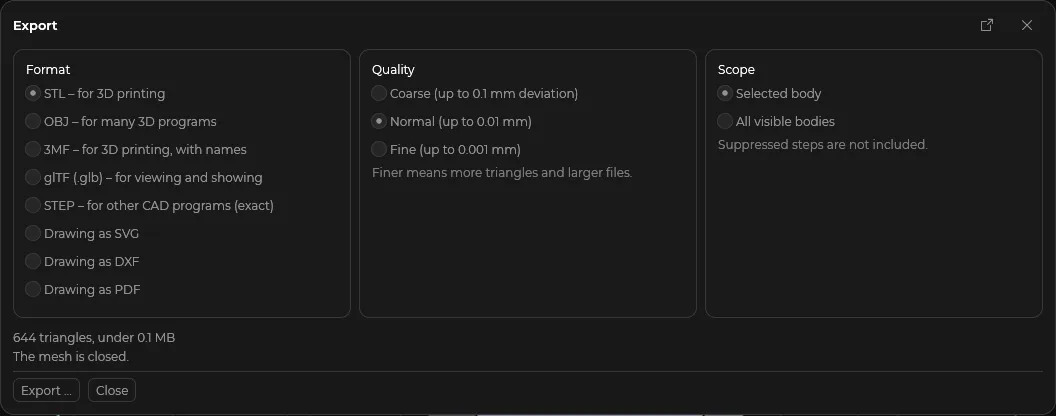
Options for STL, OBJ, 3MF and glTF
- "Quality": "Coarse (up to 0.1 mm deviation)", "Normal (up to 0.01 mm)" or "Fine (up to 0.001 mm)". Finer means more triangles and a larger file.
- "Scope": "Selected body" or "All visible bodies".
- The window shows the number of triangles and the file size in advance. If the mesh is not closed, it warns you.
STEP
- There is no quality choice, because STEP stores the exact shape.
- Every body becomes a part of its own with its name.
- Only shape and dimensions in millimeters are stored, no colors and no assemblies.
- Mesh bodies are left out.
Drawing as SVG, DXF or PDF
- Choose the drawing.
- "Include sheet frame": export the frame and title block too (on by default).
- For PDF: "Selected sheet" or "All sheets".
- "Drawing language": the default is the language of the program. You can choose another one for this export, for example a German drawing from the English program. Title block, parts list, view names and dimension numbers then appear in that language; your own entries stay as they are. The choice applies as long as the window is open.
- A drawing in inches is exported with dimensions in inches. The sheet itself stays in millimeters.
- The export is locked as long as the drawing has red dimensions, lost balloons or errors in sections.
- DXF and PDF only support characters from the Western European character set. Special characters such as Chinese characters do not work.
Important: the current state is exported. Bodies that are rolled back in the history bar are missing. Bodies you only hid with the eye are exported too. Drawings (PDF, DXF, SVG) are different: hidden bodies do not appear on the sheet. Canvases are not included in any export.
The file chooser
PlanoraCAD has its own window for choosing files and folders:
- On the left there are shortcuts: Documents, Downloads, Desktop, Pictures, Projects, drives and favorites.
- Double-click to open a folder.
- Right-click a folder to choose "Add to favorites" or "Remove from favorites".
- You reach another drive by typing its path.
A USB stick that you plug in after starting the program only appears in the list after restarting the program.