Modifying bodies
Here you combine bodies, move them and round off edges.
Combining bodies (union, subtract, intersect)
- Choose "Edit" → "Union …", "Subtract …" or "Intersect …". Alternatively, click one of the buttons in the command panel at the bottom.
- Choose "Body A" and "Body B". They must be two different bodies.
- Check the operation:
- Union: both bodies become one.
- Subtract (A − B): body B is cut out of body A.
- Intersect: only the part that both have in common remains.
- Click "Run".
The new body is named after the operation, for example "Union 1".
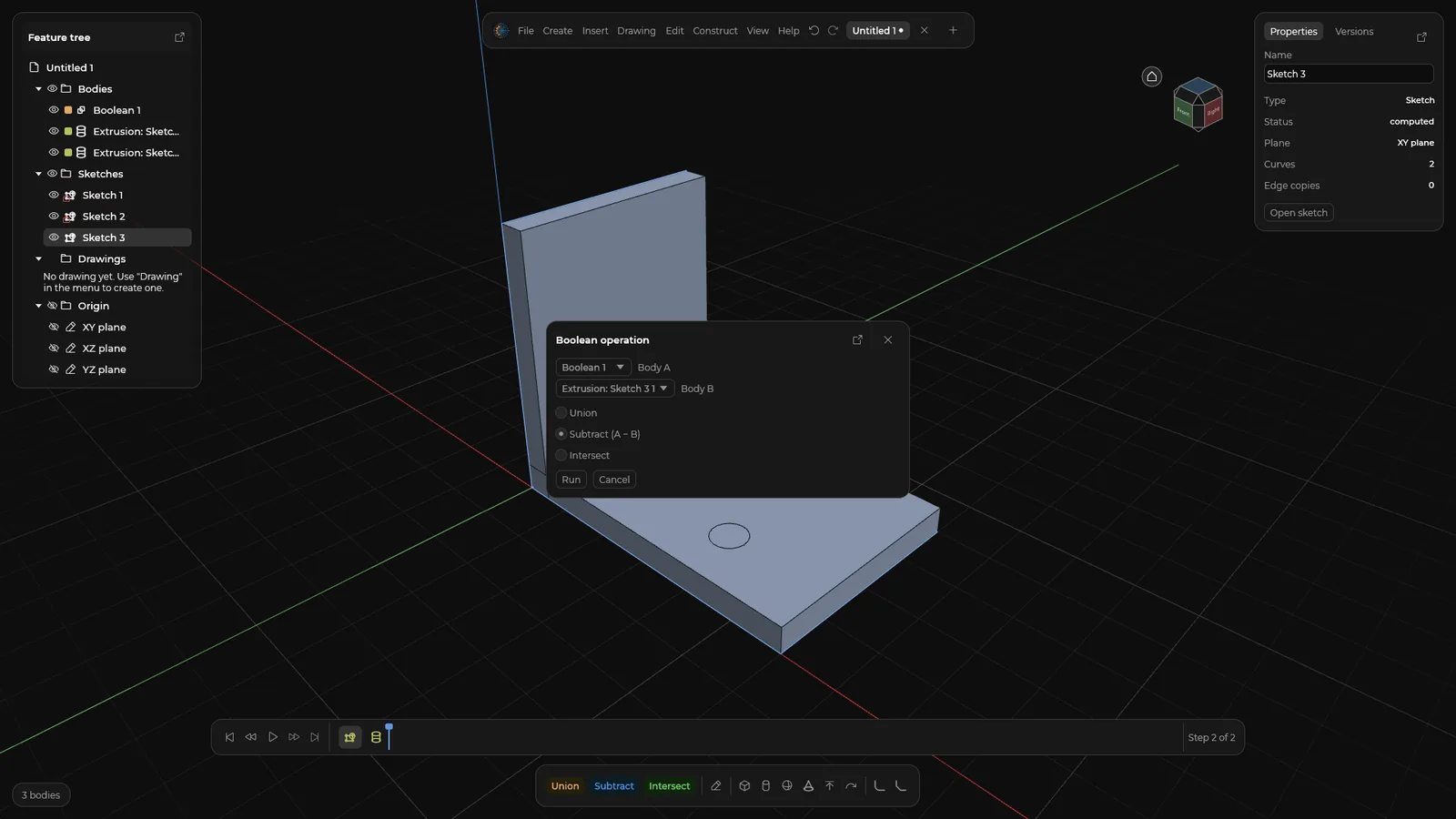
Example: a hole in a plate
- Create a plate (box).
- Create a cylinder that goes through the plate.
- Choose "Subtract …", the plate as body A and the cylinder as body B.
- Click "Run".
Good to know
- With bodies made of freeform surfaces (from ellipses or splines), the calculation can take a few seconds. The window does not respond during that time.
- Some situations cannot be calculated. These include bodies that only touch at an edge, very shallow contacts and two cylinders crossing at an angle. You then get a message instead of a result. Moving one body a little often helps.
- This does not work with imported mesh bodies (STL, OBJ).
Moving bodies
- Select the body.
- On the right under "Properties", change the values in the "Position" field. You can type the numbers or drag with the mouse.
Each move is added as a step "Move" at the end of the history.
To change a move later, double-click the "Move" step. In the window you then change "Δx", "Δy" and "Δz".
Note
Sketches created before the move do not move along.
Filleting edges
- Press F or choose "Edit" → "Fillet …".
- Click an edge in the 3D view. Shift + click selects more edges. A second click removes an edge again.
- Choose the type:
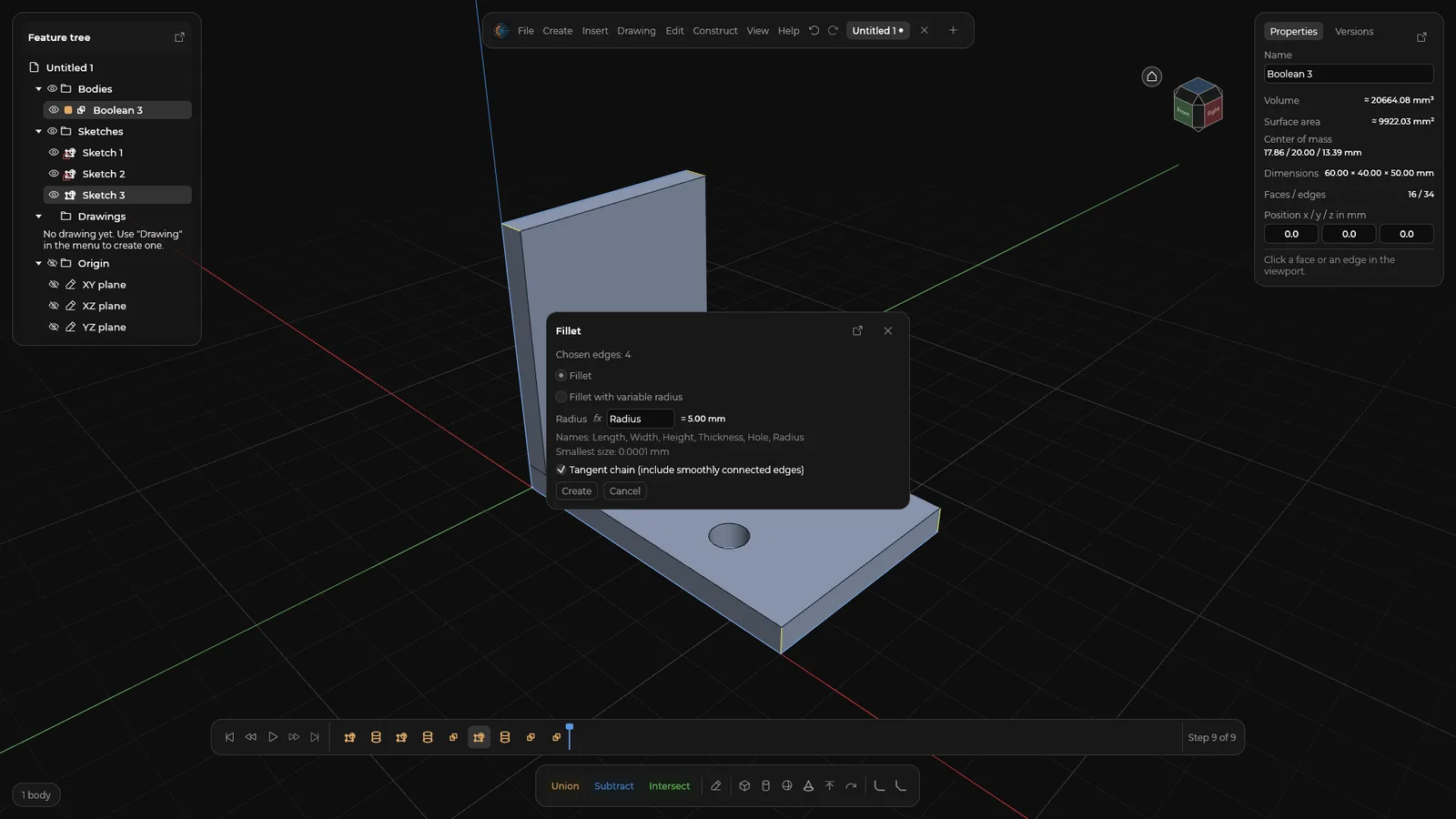
- "Fillet": the same radius along the whole edge.
- "Fillet with variable radius": the radius changes along the edge. Add points for this ("Add point") and enter the position in % and the radius for each.
- Enter the "Radius".
- Click "Create".
The window can be moved. This lets you reach hidden edges.
The "Tangent chain" switch includes edges that connect smoothly to the selected edge. The smallest possible size is shown at the bottom of the window.
Chamfering edges
- Choose "Edit" → "Chamfer …".
- Select the edges as for filleting.
- Choose the type:
- "Chamfer: equal distance": the same distance on both sides of the edge.
- "Chamfer: two distances": "Distance 1" and "Distance 2". "Face 1" sets on which side distance 1 applies.
- "Chamfer: distance and angle": one distance and an angle between 1° and 179°.
- Click "Create".
Limits of fillet and chamfer
- Only one body at a time.
- Bodies with cavities or made of several parts do not work.
- Corners where many fillets meet often cannot be calculated. This also applies to very sharp corners and some cases with freeform surfaces.
- On cylinders and cones, some fillets are refused. A message then gives the reason.
- Formulas do not work for the fillet with variable radius.
Changing, suppressing, deleting steps
Every step stays editable:
- Edit: double-click the step in the feature tree, or right-click → "Edit". Change the values and click "Apply".
- Suppress: right-click → "Suppress". The step is switched off but not deleted. Steps that build on it are skipped. "Activate" switches it back on.
- Delete: right-click → "Delete" or the Delete key. The program shows beforehand which steps are affected.
The shape of imported STEP bodies cannot be changed through dimensions.
Next: History and undo