Settings and updates
Opening the settings
Choose "File" → "Settings …". Every change applies immediately and is saved immediately. "Close" closes the window.
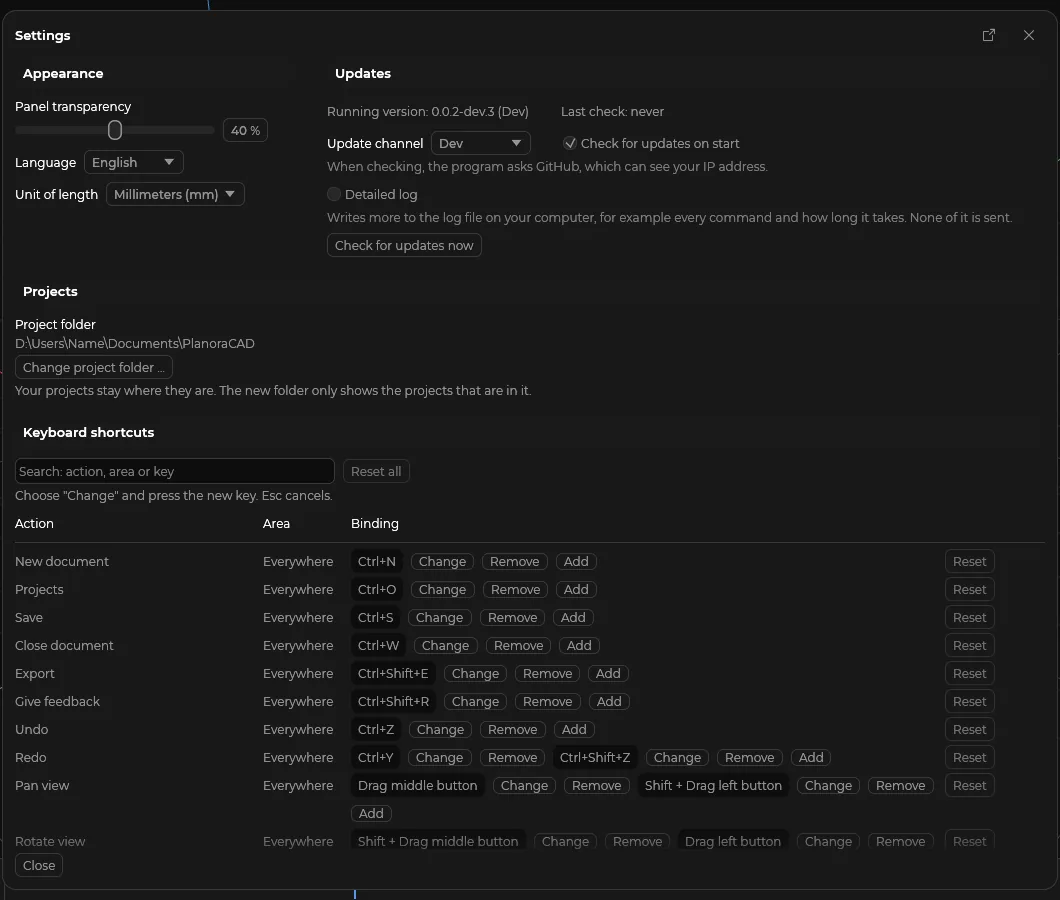
Appearance
- "Panel transparency": with the slider (0 to 80 %) you set how much the panels let the model show through. This way you see more of the model behind them.
- "Language": here you choose the language of the program, for example English or Deutsch. The change takes effect immediately and stays saved. At the first start PlanoraCAD uses the language of Windows; if it is not available, it starts in English. Numbers appear with a point or a comma to match the language; you can always type either.
- "Unit of length": "Millimeters (mm)" or "Inches (in)". The choice applies immediately and stays saved. See Dimensions in inches.
You do not switch between light and dark here, but through "View" → "Light theme" or "Dark theme". The program remembers your choice and starts the same way next time. In the light theme, what you type into fields is shown in a bold, easy-to-read font.
Updates
- "Running version": your current program version, for example "0.0.2-dev.5 (Dev)".
- "Last check": when the program last looked for updates.
- "Update channel": at the moment there is only the "Dev" channel with developer versions.
- "Check for updates on start": if ticked, the program looks for a new version at startup, at most once a day.
- "Detailed log": if ticked, the program writes more to the log file on your computer, for example every command and how long it takes. Project contents are not included, and nothing is sent. Switch it on if you want to report a bug that is hard to reproduce.
- "Check for updates now": checks right away. The result appears next to it, for example "You have the latest version."
- If you skipped a version, "Show again" lets the program offer it again.
When checking, the program only asks GitHub for the latest version. Like with any connection, GitHub sees your internet address. The program does not send projects, names or an identifier of your computer. If you untick "Check for updates on start", the program never connects by itself.
Projects
- "Project folder": the folder where your projects are.
- "Change project folder …": chooses another folder. Existing projects are not moved. This only works when no saved document is open.
- "Name for drawings": this name appears under "Created by" in new drawings. By default the field is empty, and then no name appears there. It is saved as soon as you leave the field, for example with Enter, or close the window. Existing drawings keep their entry.
Keyboard shortcuts
Here you change all keyboard shortcuts and mouse gestures. See Keyboard shortcuts.
Dimensions in inches
If you set the unit of length to "Inches (in)":
- Lengths appear in
in, areas inin²and volumes inin³, with three decimal places. - A number without a unit counts as inches.
- You may write a unit after a number:
mm,cm,morin. For example "2 in", "50mm" or "Width + 1 in". This way you can mix units. - Saved formulas keep their value. Your bodies and files do not change when you switch.
- Every technical drawing has its own unit. A new drawing takes over the setting. You can change it in "Sheet info". A drawing in inches carries the note "Dimensions in inches".
Good to know:
- If you switch while a window is open, input there that was not yet confirmed is lost.
- The program does not show fractions (1/8″). You can still type "1/8 in", because formulas can divide.
- Whatever belongs to the paper stays in millimeters, for example sheet size and line widths. The export accuracy is also given in millimeters.
Where your data is stored
- Projects: in the folder
Documents\PlanoraCAD(or the folder you chose above). - Settings, log, crash reports and feedback: in the folder
%APPDATA%\PlanoraCAD. You get there by typing%APPDATA%\PlanoraCADinto the address bar of Explorer and pressing Enter. config.json: your settings.planora.log: the log. When it gets too large (about 1 MB), the program starts a new file and keeps the last two asplanora.1.logandplanora.2.log. Project contents are not included.- Folder
abstuerze: crash reports. The program deletes old reports after 30 days. - Folder
rueckmeldungen: files the program has prepared for feedback.
These folders are kept when you uninstall.
Installing updates
Updates are only available on Windows and only if you installed PlanoraCAD with the installer.
Since version 0.0.2-dev.2 there are real updates from one version to the next. If you installed an older developer version with the installer, the newer one is offered at startup, as long as "Check for updates on start" is on.
The update function is still new. If something goes wrong, see If the update does not work.
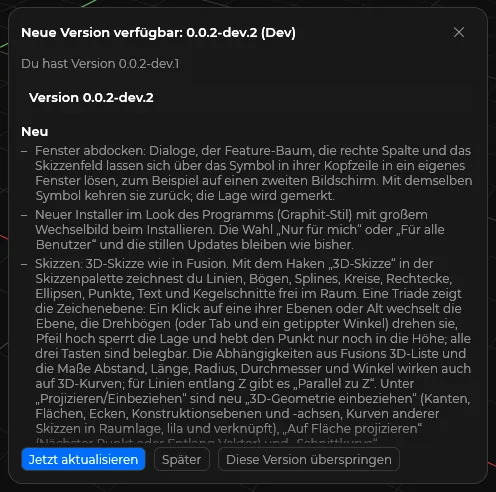
- When there is a new version, a window "New version available" with the changes appears at the bottom right.
- Choose:
- "Update now": downloads the new installer and checks it.
- "Later": the notice comes back after 24 hours at the earliest.
- "Skip this version": no longer asks about this version.
- If you have unsaved work, the program asks before restarting whether you want to save.
- The program closes and starts the installer in the background. You do not see an installer window. It uses the same type of installation as before. If you installed "For all users", Windows now asks for administrator rights.
- The new version opens and reports "Updated to version …". If something is wrong, click "Send feedback" there.
Good to know:
- Before starting, the program checks the download with a checksum.
- If you decline the request for administrator rights or something goes wrong, the current version simply keeps running. "Try again" tries once more.
- If the program does not run from an installation, for example directly from a build folder, the notice only shows the "Open download page" button.
- You cannot go back to an older version from within the program. For that, download the installer of the version you want from the releases page and run it.
If the update does not work
- Did you decline the request for administrator rights? Start the update again and answer "Yes".
- Still not working? The program writes the course of the update to the file
planoracad-update.login the Temp folder. Press the Windows key and R, type%TEMP%and press Enter. - Download the new installer yourself from the releases page and run it. It replaces the old version. Your projects and settings are kept.