Projects and saving
PlanoraCAD stores your work in projects. Every save creates a new version. Older versions are not lost.
How everything is stored
- Project folder: the main folder for all projects. The default is
Documents\PlanoraCAD. - Project: a folder inside the project folder.
- Folder: you can create as many folders inside a project as you like.
- Document: a part with all its versions. On disk this is a folder ending in
.pcad.
All of these are normal folders and files. You can copy and back them up as usual.
The "Projects" window
Open it with Ctrl+O or "File" → "Projects …".
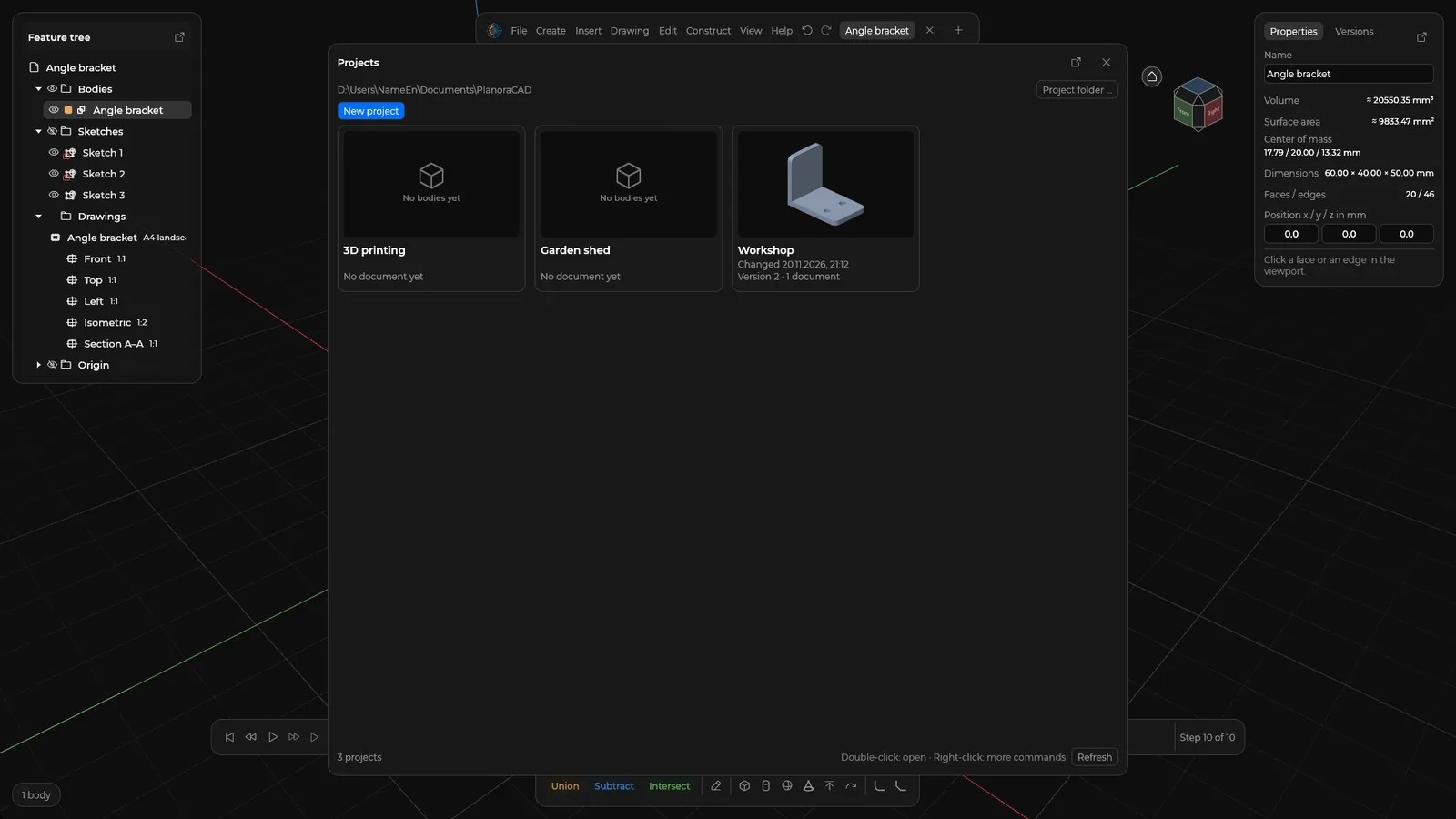
- Every tile shows a thumbnail, the name, the date of the last change and the version number.
- Double-click opens a project, a folder or a document. A document opens in a tab. If it is already open, the program brings that tab to the front.
- Use the path bar at the top or the arrow "Up one level" to go back.
- The window may stay open while you work.
Buttons: | Button | Effect | |---|---| | New project | Creates a project. | | New folder | Creates a folder in the current project. | | New document | Creates a document, saves version 1 right away and opens it. | | Refresh | Reads the folders again. | | Project folder … | Shows or changes the main folder. |
Right-click a tile:
- "Rename …"
- "Move …" to another folder (not for projects)
- "Delete …" moves it to the trash
Renaming, moving and deleting only work when the affected documents are closed.
Saving
First save:
- Press Ctrl+S.
- In the "Save as" window, choose the target (a project or a folder).
- Enter a name. The name must not end in
.pcad. - Add a comment if you like.
- Confirm.
Every further save:
- Press Ctrl+S.
- In the "Save version" window, enter a comment, for example "Holes added".
- Confirm. A new version is created.
With "File" → "Save as …" you save the document under a new name or in another place.
If you close a document with unsaved changes, the program asks: "Save", "Discard" or "Cancel".
Versions
On the right in the "Versions" tab you see all versions with number, branch, time and comment.
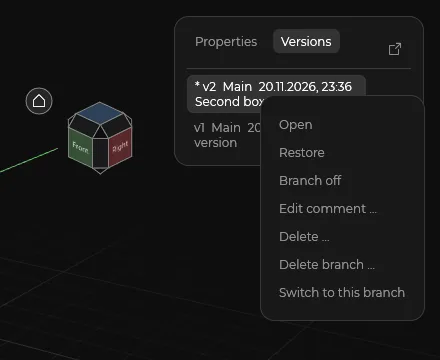
Right-click a version: | Command | Effect | |---|---| | Open | Opens the version for viewing in a tab of its own. It is read-only. | | Restore | Makes this version the newest one again. | | Branch off | Starts a new branch from this version. | | Edit comment … | Changes the comment. | | Delete … | Deletes the version permanently. | | Delete branch … | Deletes a whole branch permanently. | | Switch to this branch | Continues working on the other branch. |
You need branches when you want to try out an idea without changing the main line. If you save on an older version, the program asks for a branch name. The first branch is called "Main" (in the German interface "Haupt"). You cannot use these two names for new branches. Branches cannot be merged again.
Deleted versions and branches do not go to the trash. They are gone for good.
Autosave
- Every 2 minutes the program saves changed documents in the background. This does not create a new version.
- This only applies to documents that have been saved at least once.
- After a crash, the program asks the next time you open the document: "Autosave found". Choose "Restore" or "Discard".
One document in two program windows
A document can only be open in one running PlanoraCAD at a time. If you try to open it a second time, "Document locked" appears. With "Take over lock" you open it anyway. This is needed, for example, after a crash.
Trash
Deleted projects, folders and documents go to the .papierkorb folder inside the project folder. The program never deletes anything there for good. You can find everything again in Windows Explorer.
Older program versions
New features sometimes need a newer file format. If you save a document that contains such a thing, an older version of PlanoraCAD can no longer open it. It then reports that the file was created with a newer program version. In that case, update the program.
Since 0.0.2-dev.2 this applies, for example, to documents with centerlines, patterns, the new constraints, control point splines, conic curves, text, canvases, construction planes, hidden objects, 3D sketches or drawings in inches.
Since 0.0.2-dev.3 there are three more formats. File format 21 is needed by sketches with a curvature comb, with a blend curve that ends in the direction of the curve it joins, with a smooth elliptical arc or with an opposite angle, and by sketches with a projected curve whose body has been deleted. File format 22 is needed by sketch groups, a text height with a formula, a spun profile and an isoparametric curve. File format 23 is needed by sketches in which a display tick differs from the default, for example "Slice". For such files an older version reports that they were created with a newer program version. This is the same on Windows and Ubuntu.
The program only uses the newer format when it is needed. All other documents stay as they were and also open in older versions.
Next: Import and export