Web interface tour
The whole control of HyperLED is one web page that the ESP32 serves itself. It works on phones, tablets and computers. On a phone the menu is at the bottom, on a larger screen on the left.
The menu has five areas: Light, Scenes, Panel, Devices and Settings.
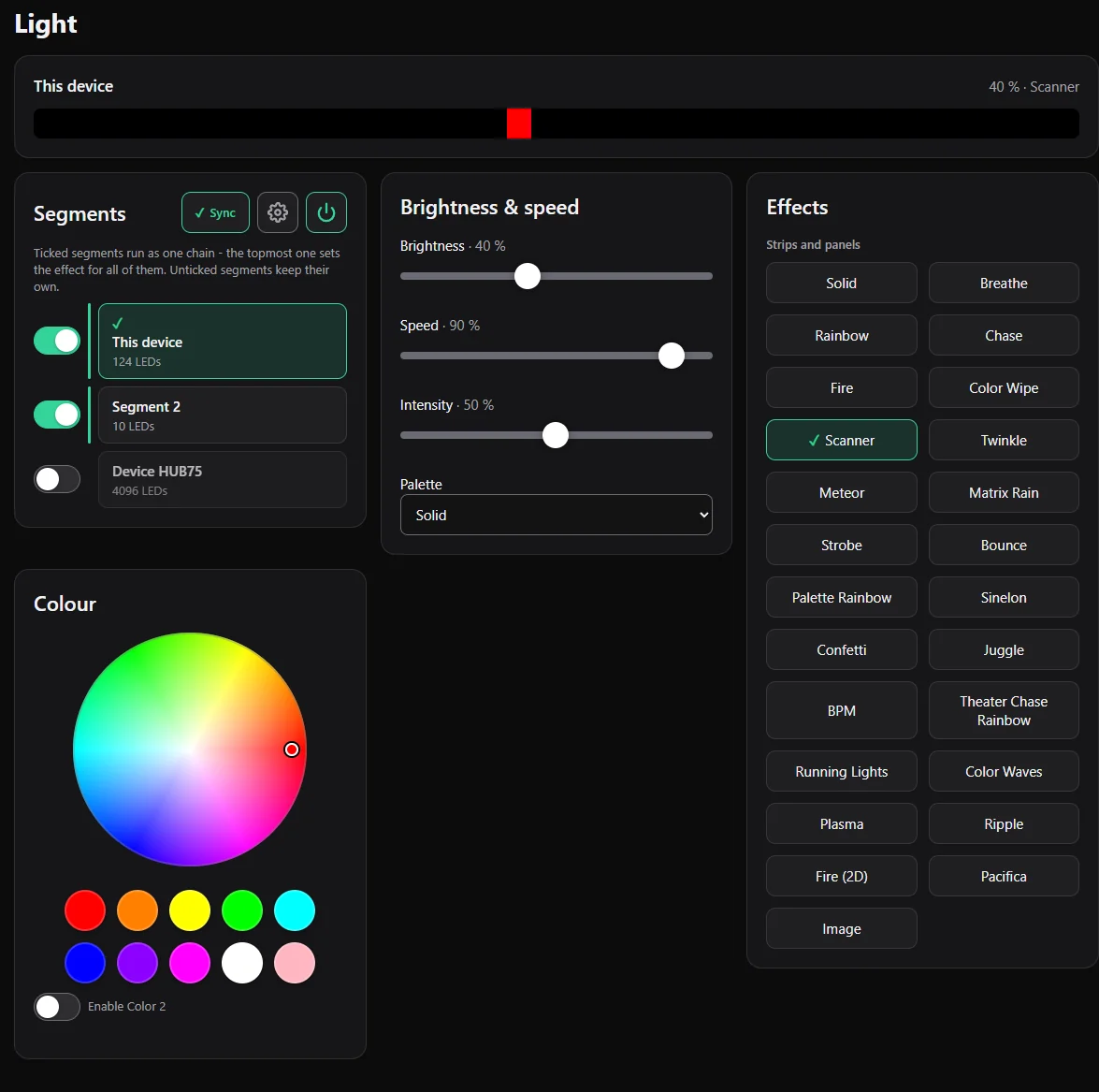
On a computer (the menu is on the left):
On a phone (the menu is at the bottom):
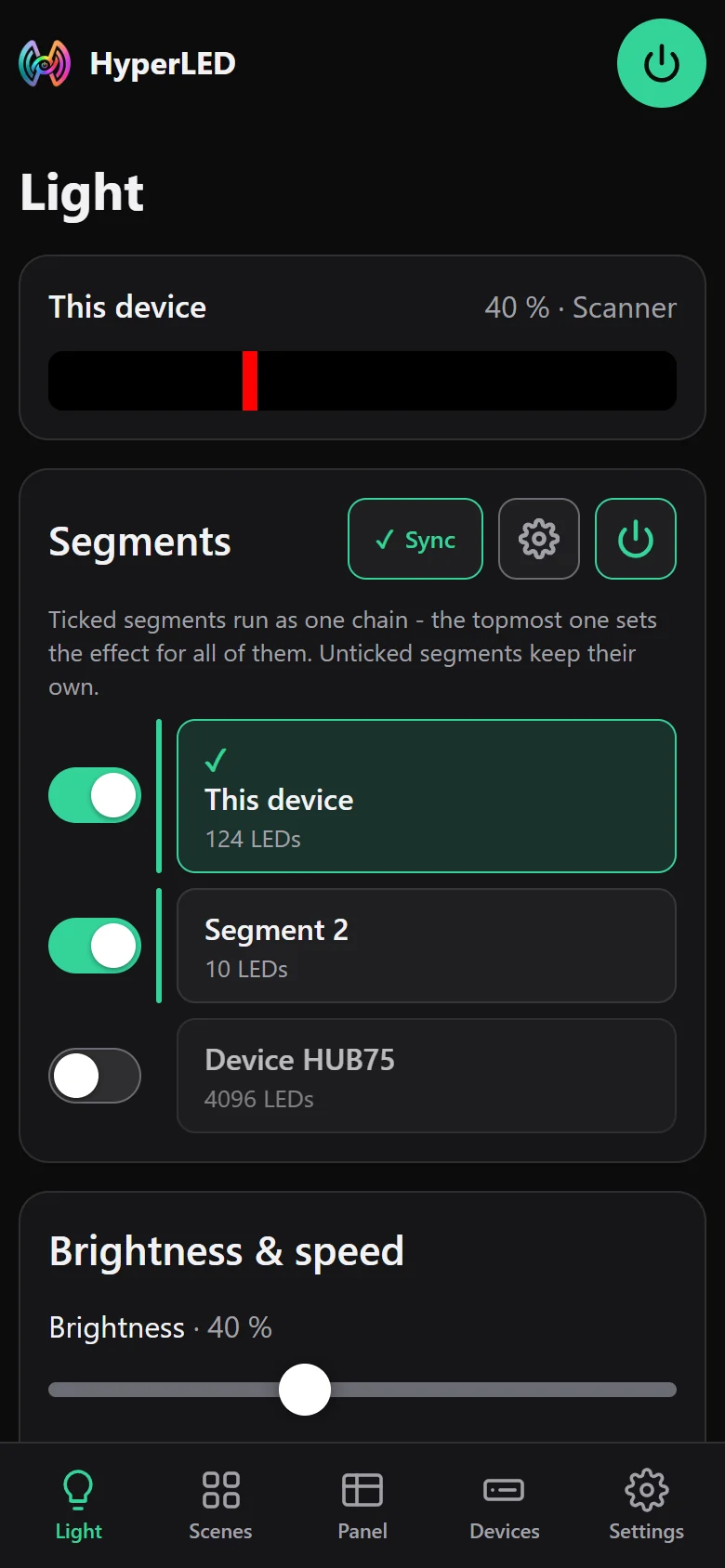
The round power button at the top right switches all segments on or off.
Light
The page for everyday use.
- Live strip: at the top you see what the selected segment shows right now.
- Segments: your LED zones. Tap one to select it; the controls below then change that segment. You can drag segments to change their order. The gear edits the segments (see Effects, colours and segments), the power button next to it switches the selected segment on or off, and Sync links segments into one chain (see the same page).
- Brightness & speed: brightness, speed and intensity of the effect, and a palette.
- Colour: a colour wheel, quick colours, and a second colour for effects that use two.
- Effects: tap one to apply it.
If a plugin controls a segment, a notice at the top says so and offers Settings and Pause (see Plugins).
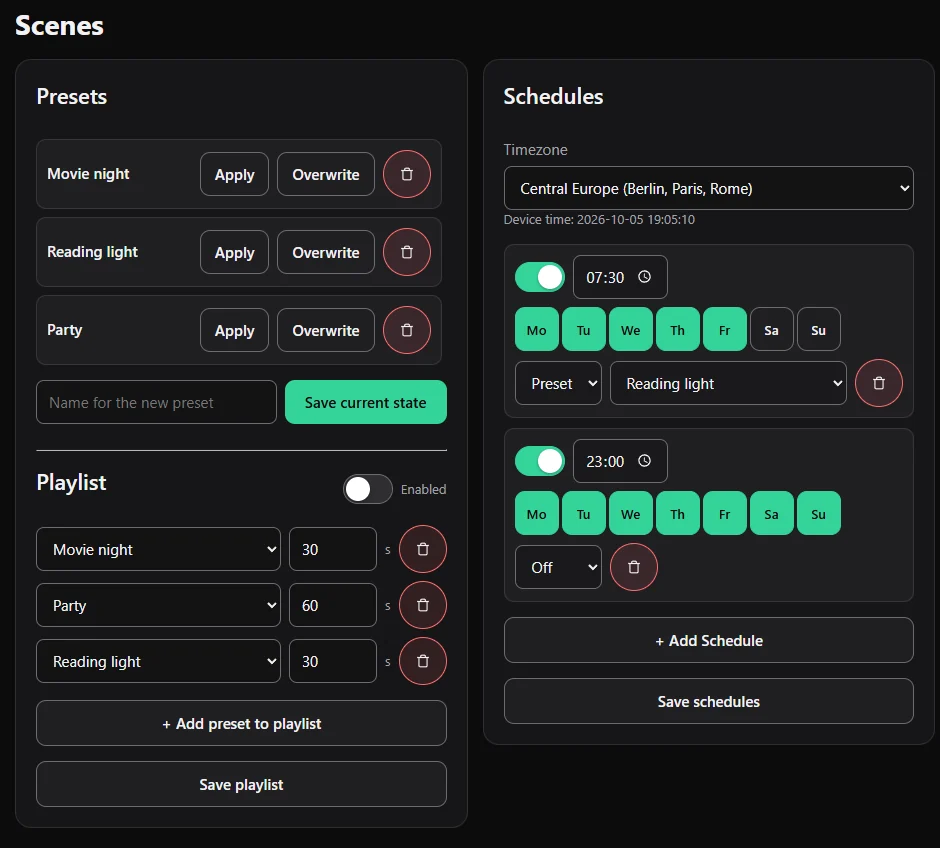
Scenes
Presets, a playlist and schedules. Save a lighting mood and apply it with one tap, play several in a row, or switch things on at set times. See Scenes, playlists and schedules.
Panel
For LED panels and matrices: the live preview, and the elements (clock, date, text, scrolling text, weather, picture) you place on them. See Panels and elements.
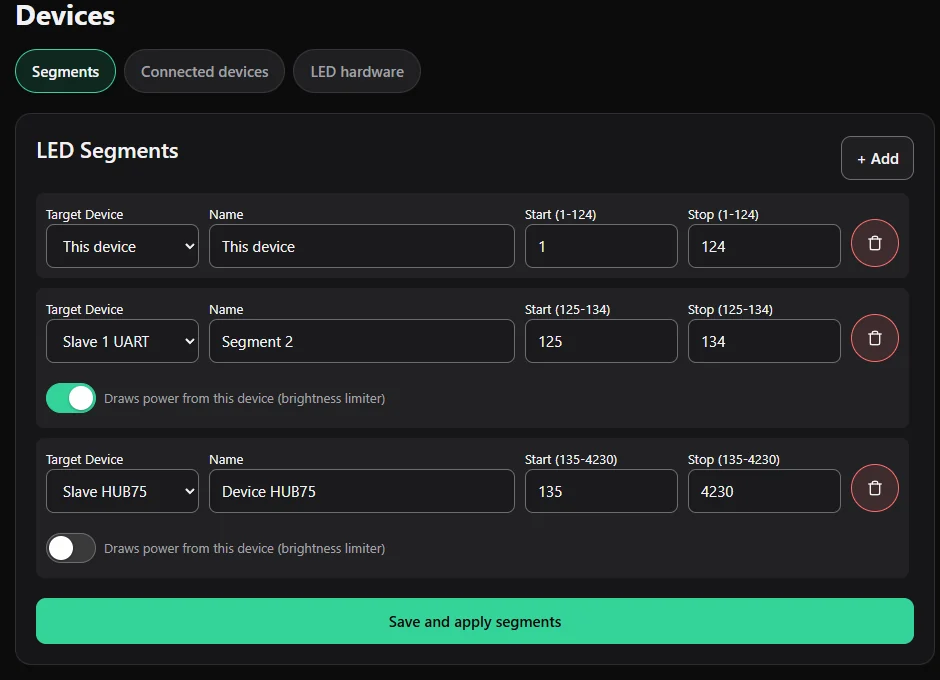
Devices
Three tabs:
- Segments: create and edit LED segments.
- Connected devices: other HyperLED boards (Slaves) that were found automatically. See Several devices.
- LED hardware: LED type, count, pin, buttons, power limit and matrix setup. See First light.
Settings
Three tabs:
- Wi-Fi & MQTT: your network and the smart-home connection. See Home Assistant and MQTT.
- Plugins: add and set up plugins. See Plugins.
- System: language, updates, backup and reset. See Updates, backup and reset.
Tips
- Changes on the Light page apply immediately. Pages with a Save button (segments, schedules, LED hardware) only apply when you press it.
- The interface remembers your language. Change it under Settings → System → Language: German, English or Russian.
- The web interface needs no internet. Only the weather and online updates do.